How to mark a sale as won or lost
Close a lead in Kamay from the board or from its record: save the final value if you won it or the reason if you lost it, and track your conversion.
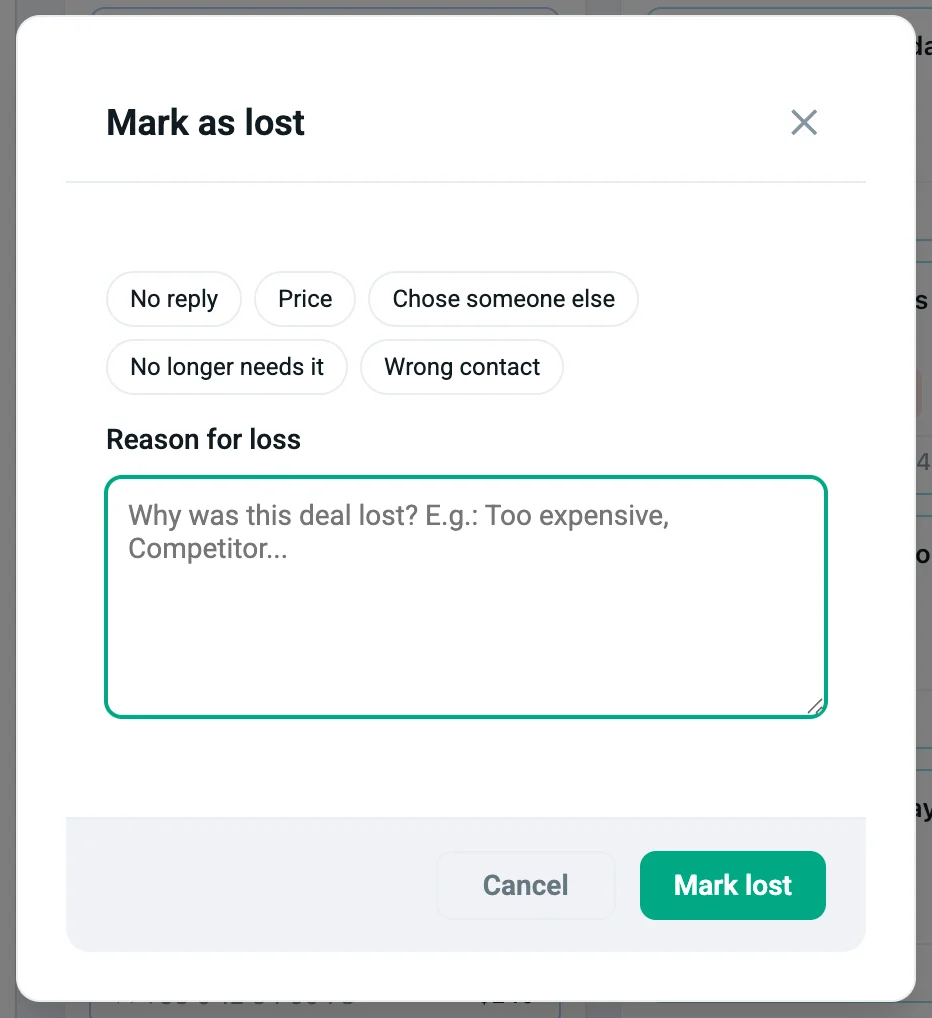
To mark a sale as won or lost in Kamay, move the lead to the won (100%) or lost (0%) stage of your pipeline. Before it moves, a window opens: if you won it, you confirm the final value; if you lost it, you choose the reason.
Any stage with the status Won (100%) or Lost (0%) counts, whatever it’s called. You define it in Funnel Settings.
1. From the board
- Open Dashboard › Funnel.
- Drag the card to the won or lost column; in the example pipeline, Won or Lost.
- Fill in the window that opens (see steps 3 and 4). You’ll see “Lead moved successfully”.
If you click Cancel, the card stays in its column and nothing changes.
2. From the lead record
- Open the record: click the card on the board or, with the customer’s chat open, open it from Client.
- In the stage bar, the last step shows the name of your won stage with an arrow, for example Won ▼. Click it.
- Choose Won or Lost in the list. The same window opens as on the board.
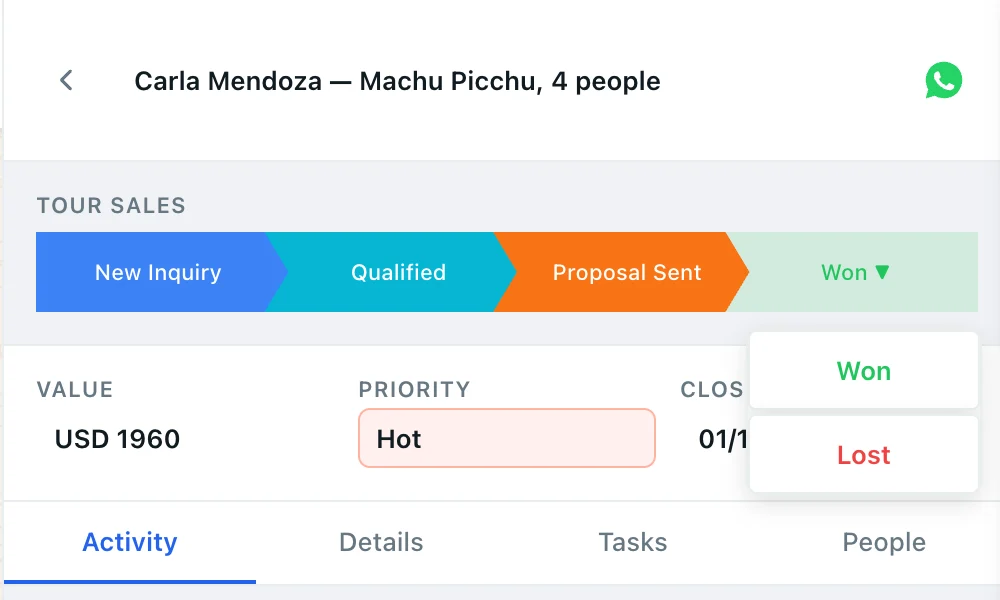
When you save, you’ll see “Stage updated”. Everything else in the record is in the lead record.
3. Mark the sale as won
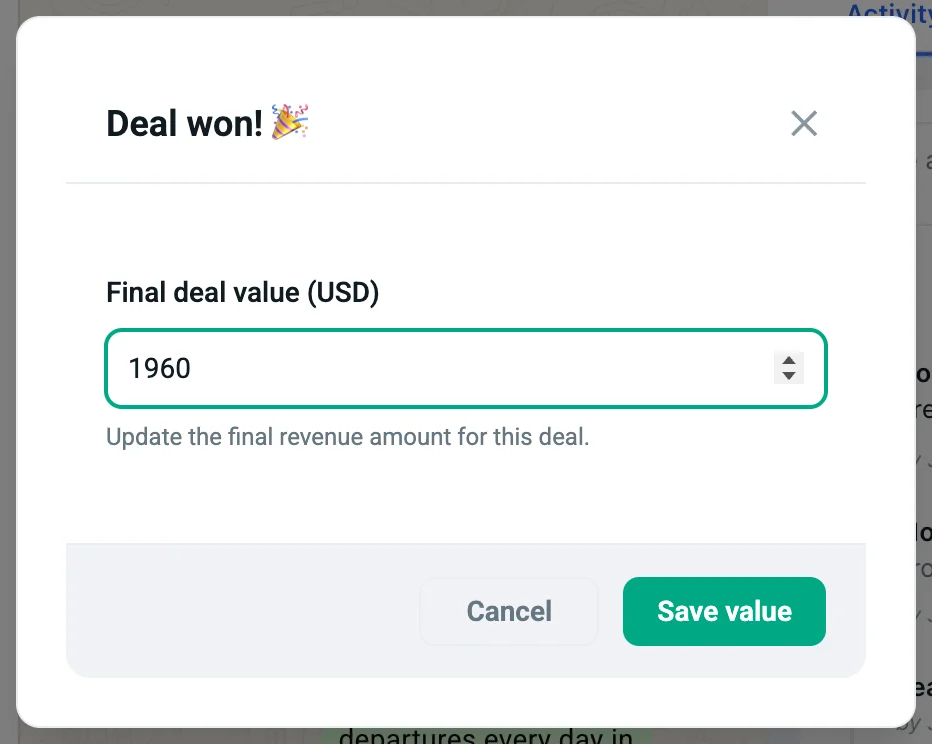
Deal won! opens:
- The Final deal value field shows the value the lead had. Change it if the final price was different, for example if Carla Mendoza closed her Machu Picchu tour for 4 people at USD 1,960.
- Click Save value.
4. Mark the sale as lost
Mark as lost opens:
- Tap a quick reason: No reply, Price, Chose someone else, No longer needs it or Wrong contact. The reason is copied into the Reason for loss field, where you can edit it.
- Or type your own reason in that field. It’s optional.
- Click Mark lost.
In Dashboard › Summary, the Mark lost button in the Inactive (>7 days) column opens this same window.
Ask the assistant
You can also write to the Kamay assistant, for example “Mark Juan Pérez’s lead as won”. Before changing anything it shows you a Mark as won or Mark as lost card, and it only acts when you click Confirm.
If you made a mistake
Drag the card back to an open stage, or choose that stage in the record’s bar. The lead counts as open again.
How it counts toward your conversion
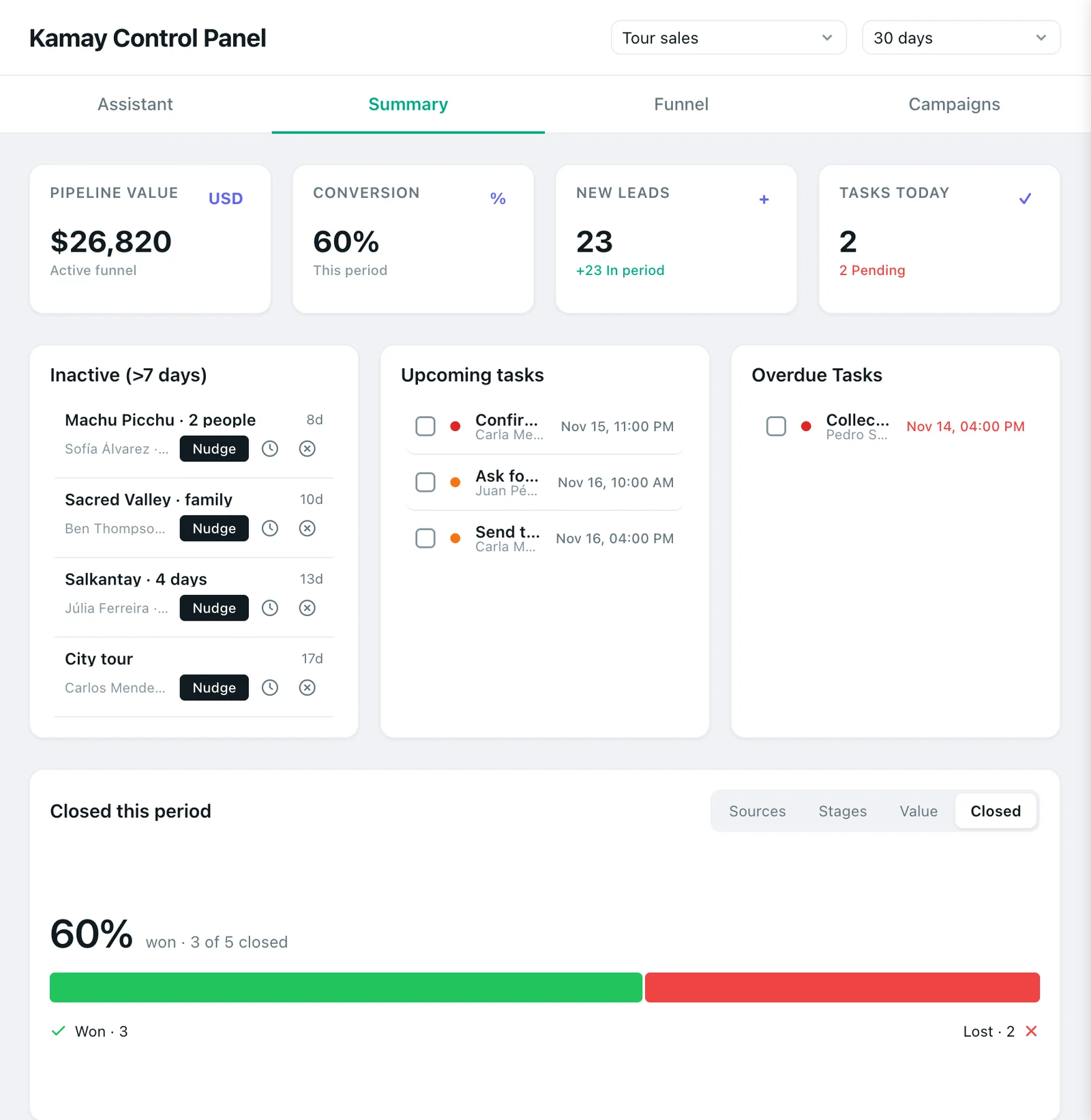
In Dashboard › Summary, with the pipeline and the period you choose at the top:
- Conversion divides the won by the won plus the lost.
- The Closed chart shows how many you won out of all the ones you closed.
- Pipeline value only counts open leads, each one multiplied by its stage’s probability: when you close one, its value leaves that figure. The Dashboard summary explains it.
Won and lost leads still count toward your plan’s lead limit, which you can see on Pricing.
To end up with fewer leads in Lost, continue with lead follow-up tasks.