Follow-up tasks for WhatsApp customers
Create calls, emails and meetings with a date and reminder in each lead's record, complete them and review them in the Dashboard or the Today block.
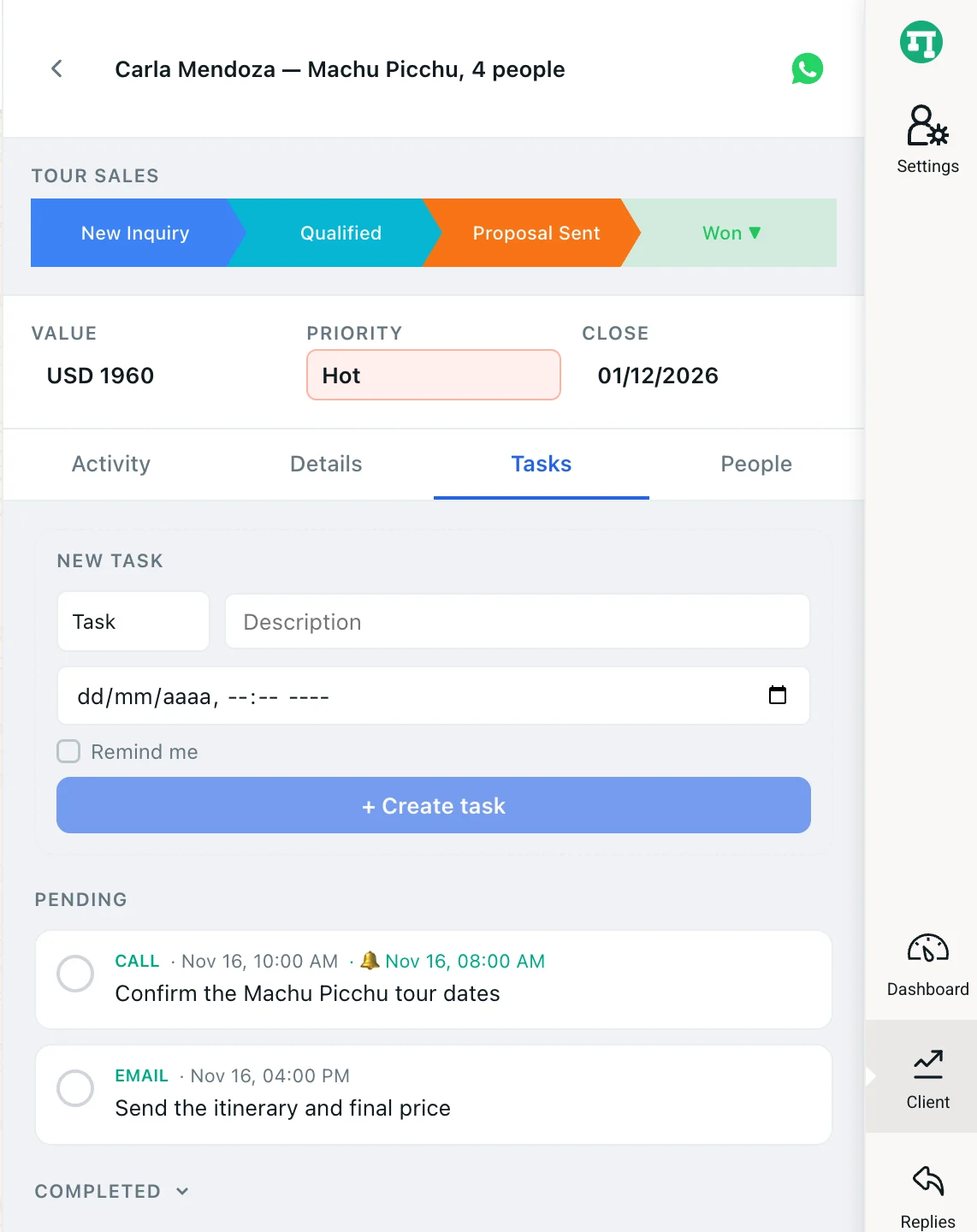
Customer follow-up tasks are what you need to do with a lead and when: call them, email them, meet them. They live on the Tasks tab of the lead’s record and, if you ask, they send you a notification before the time.
If the chat isn’t a lead yet, or you just want to jot something down without a date, use the notes and reminders in the Chat folder, which are covered in how to follow up with your customers.
1. Create a follow-up task
- Open the lead’s record and go to the Tasks tab.
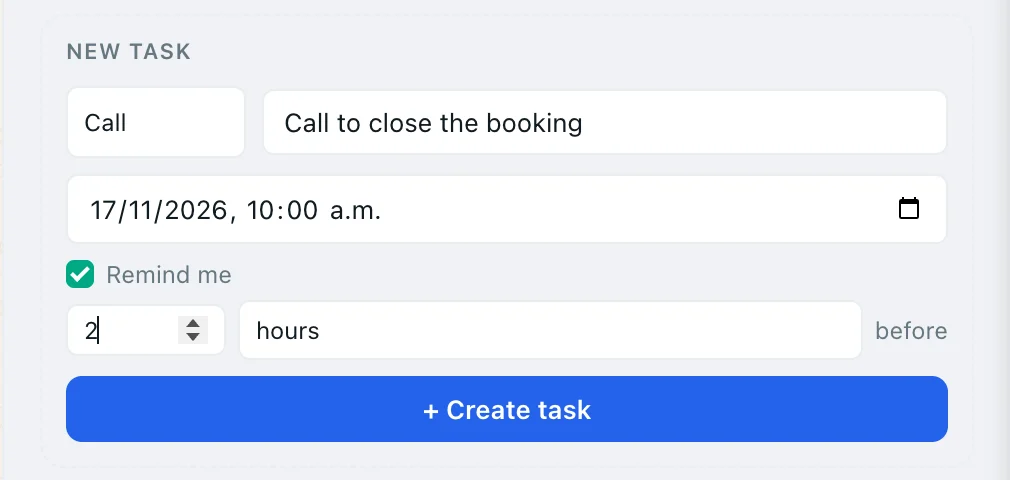
- Under New task, choose the type: Call, Email, Meeting or Task.
- Type the description, for example “Confirm dates for the Machu Picchu tour”.
- Pick a date and time. Make sure it’s in the future: this form doesn’t warn you if it has already passed.
- If you want a reminder, check Remind me and choose how many minutes, hours, days or weeks before. The checkbox becomes available once you’ve set the date.
- Click + Create task.
Without Remind me, the task doesn’t send a notification: it only shows up in your lists. And if the reminder falls in the past, for example 2 days before a task that’s due tomorrow, the task is saved without a reminder and Kamay doesn’t tell you.
Shortcut: the New task icon on each lead in the Client list, and the one on the board cards, open a short form with the same fields. That form does stop you if the date has already passed. Click Create Task to save it.
2. Pending and Completed
Below the form, Pending lists what’s left to do, with the type, the date and, if it has a reminder, the time next to the 🔔.
- Complete: check the task’s box. It moves to Completed, which expands when you click its title. To reopen it, check the box again.
- Edit: the pencil, only on pending tasks, opens the task with its details so you can change the type, description, date or reminder.
- Delete: the trash can, with confirmation. You can’t undo it.
Everything is recorded on the lead’s Activity tab.
Each task reminds you only once. If it already reminded you and you change the date by hand, it won’t remind you again. To move it with a new reminder, ask the assistant (“move Carla’s task to Thursday”) or create another task.
3. Where else you see your tasks
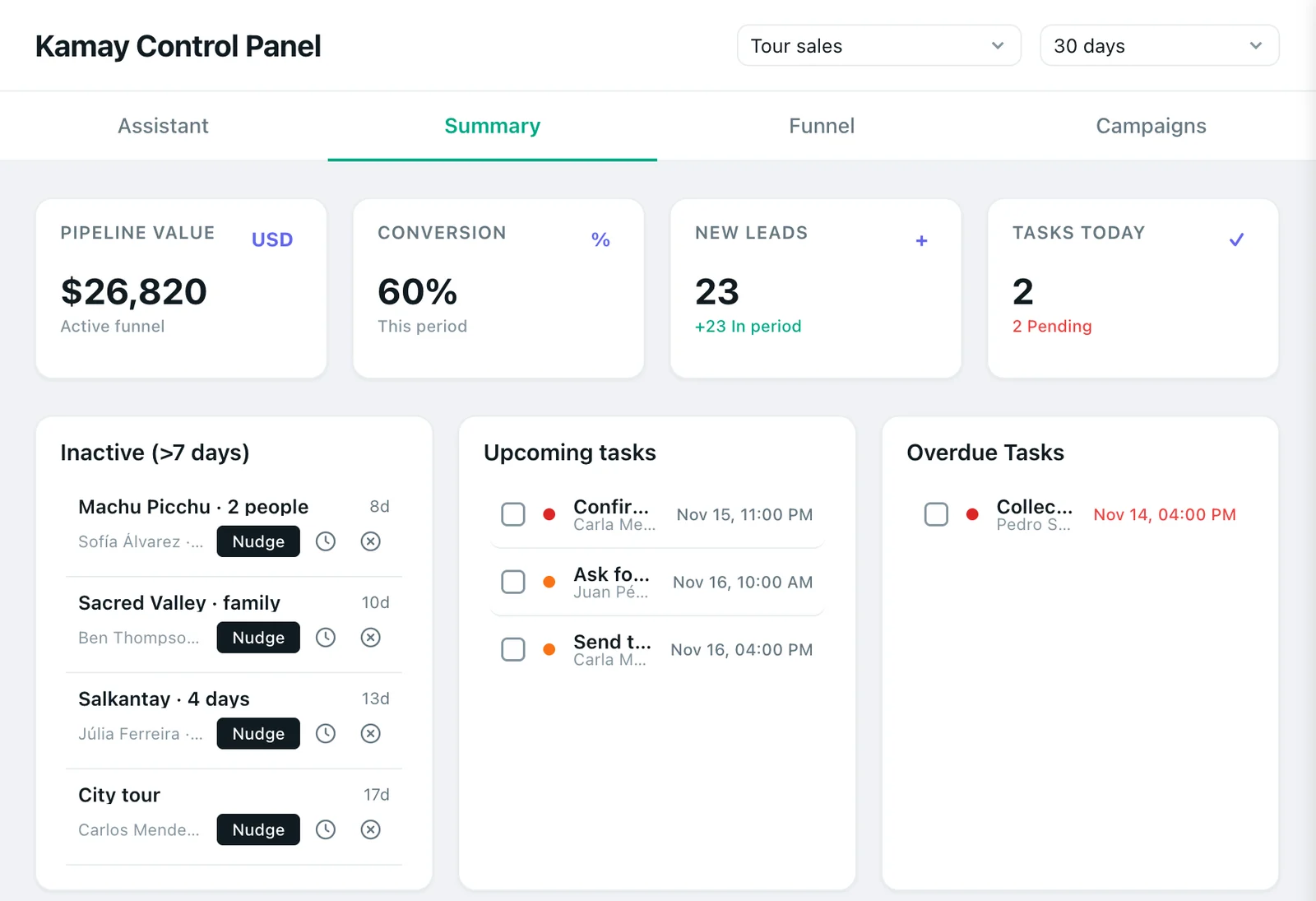
- Dashboard › Summary: the Tasks today figure and the Upcoming tasks and Overdue Tasks columns, with the lead’s name and the date. Check the box to complete them right there.
- The assistant’s “Today” block: overdue tasks and the ones due today appear as cards that you close with ✓ Done. It is explained in how to use the “Today” block.
- The Client list: the lead’s card shows “Overdue task” when it has an overdue one.
You can also ask the assistant to create, complete or move tasks in your own words. See what you can ask the assistant.
4. How follow-up task reminders work
- They arrive as a computer notification, with the lead’s title and the task description.
- They need Chrome open, even if the WhatsApp tab is closed. Kamay checks every minute. If Chrome was closed, the overdue ones arrive when you open it.
- A task you complete before its time no longer reminds you.
- When you click, WhatsApp Web comes to the front, or opens if it wasn’t open, but the customer’s chat doesn’t open: find it in the list.
When the task ends in a sale or a no, continue with how to mark a sale as won or lost.