Send bulk WhatsApp messages while protecting your number
Your first WhatsApp campaign with Kamay: pick contacts or upload a spreadsheet, personalize the message and send at a pace that protects your number.
To send bulk WhatsApp messages with Kamay, you create a campaign: a broadcast that goes out from your own number, one message at a time, with pauses between them. This guide walks you through your first one, while protecting your number.
Before you start: how to send bulk messages carefully
No tool can guarantee that WhatsApp won’t restrict a number. What matters most is who you write to and at what pace: identical messages to people who aren’t expecting you and who don’t reply are the signal WhatsApp associates with automated sending.
- Write to people who expect your message: customers, people who gave you their number or who already wrote to you.
- Start slowly: the first few times, send only a few messages a day and increase gradually if people reply.
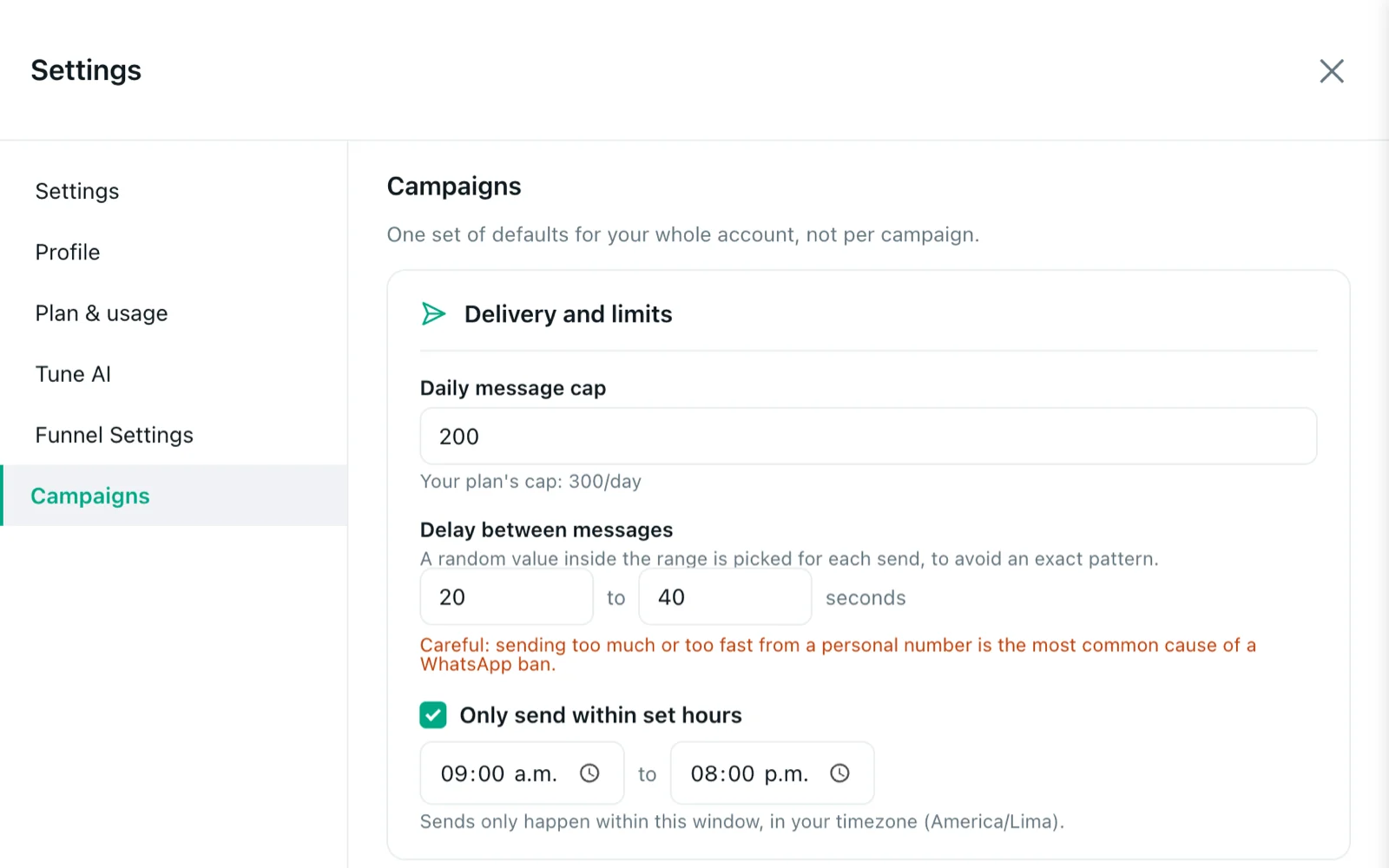
- Let Kamay go slowly. In Settings › Campaigns you choose the pace for your whole account:
- Daily message cap: you can lower it from your plan’s limit, never raise it.
- Delay between messages: by default, between 20 and 40 seconds, picked at random for each send.
- Only send within set hours: it’s turned on by default, from 09:00 to 20:00 in your browser’s time zone.
1. Create the campaign
Go to Dashboard › Campaigns and click New campaign. Type a Name: until you do, you can’t add contacts.
2. Choose the recipients
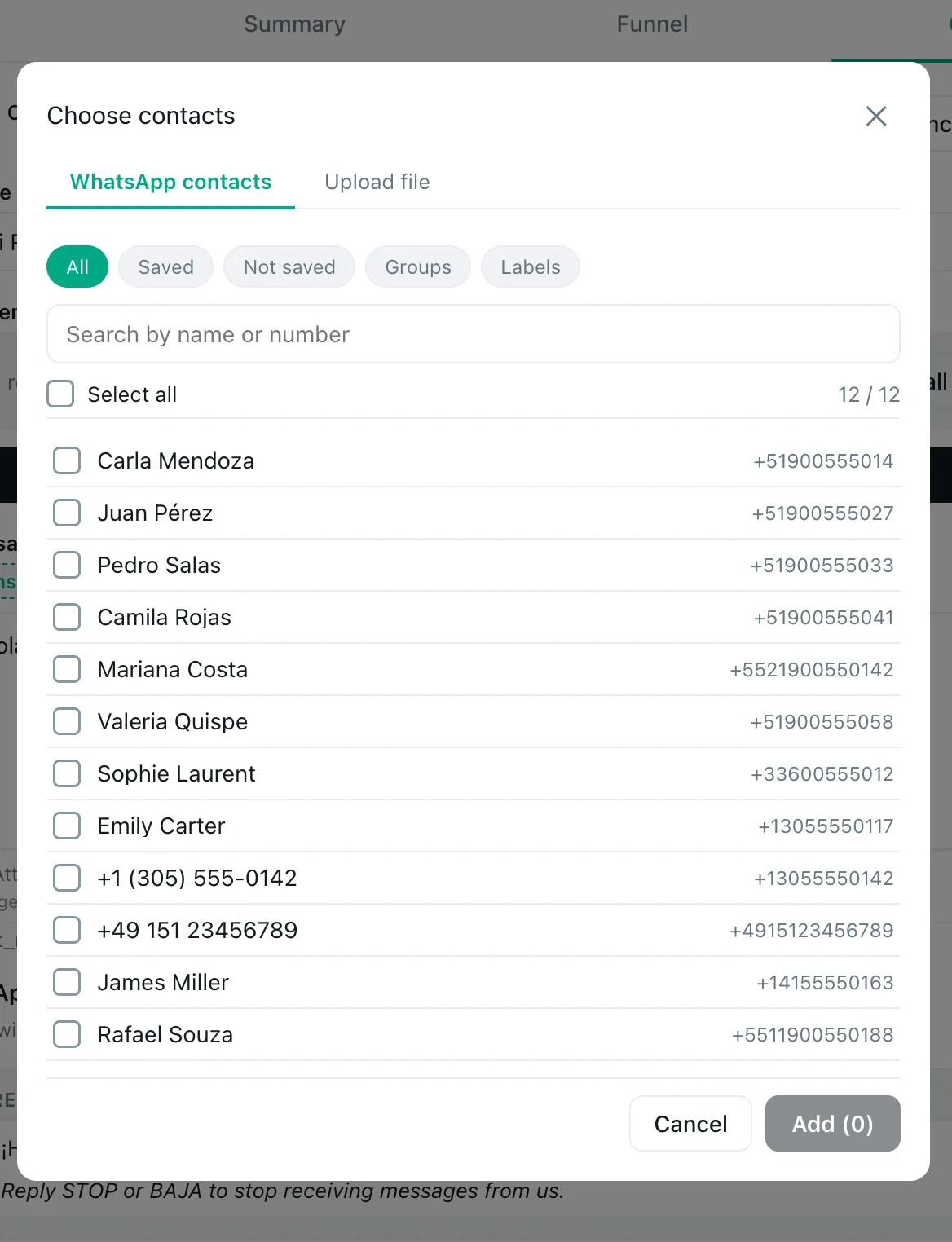
Click Add contacts. A window opens with two tabs.
WhatsApp contacts shows the individual chats you have in WhatsApp Web, not your whole phone address book. You can filter by:
- All, Saved or Not saved.
- Groups: gathers the participants of all your groups at once. The message doesn’t go to the group, but to each person, and many don’t expect it: use it with care.
- Labels: you pick one of the labels you already have in WhatsApp. Kamay only reads them; it can’t create or assign them.
Tick the people you want (or Select all) and click Add.
Upload file accepts .csv, .txt, .xlsx, .xlsm or .xls, up to 20,000 rows (10 MB for CSV and 6 MB for Excel). Only the phone number is required, with the country code; each extra column becomes a variable. Click Download sample CSV to see the format.
If the file is clean, it’s imported directly. If not, you’ll see “Here’s what I found”, with the detected columns and the rows with errors. Review and click Import.
You can also prepare the campaign from the assistant, with + › Campaign from CSV or Excel: we explain it in what you can ask the assistant.
3. Write the message
In Message, use variables in double curly braces so each person sees their own name:
Hi {{first_name}}, the model you asked about just arrived. Shall I set one aside for you?
- The + Insert {{first_name}} and + Insert {{last_name}} buttons type them for you.
- If you uploaded a file, its columns work too, like
{{city}}. - Fallback name is used when a contact has no saved name.
- A variable with no data disappears from the message; if you type one that doesn’t exist, Kamay warns you.
- You can add one file with 📎 Attach file: an image, an MP4 video or a PDF. The Free plan doesn’t include attachments, and the text is required even if you attach something.
Check the Preview — what it’ll look like and finish with a question: replies show WhatsApp that your message is welcome.
4. Offer a way to opt out
Append the opt-out line is turned on by default. It adds “Reply STOP or BAJA to stop receiving messages from us.” at the end of the message, in the language you use Kamay in. The words come from Opt-out keywords, which by default are STOP and BAJA; you can change them in each campaign.
Anyone who replies with one of those words ends up in Opted-out users (a button in Dashboard › Campaigns) and doesn’t receive any more campaigns, even if you add them again. If someone asks to opt out in other words, or doesn’t appear in that list, add their number by hand.
5. Review and launch
Click Save and continue. In Review and send, check the number of recipients and the preview, and click Launch.
Messages go out one by one from your browser. Keep your computer on, with Chrome and a WhatsApp Web tab open. If you close WhatsApp Web, sending stops and continues when you open it again.
6. Follow the sending
Each campaign shows its status: Draft, Sending, Paused, Completed or Cancelled. When you open it you see how many messages are Queued, Sent, Failed, Skipped (they had already opted out) and Opted out (they replied with an opt-out word), plus the Failure reason for each recipient.
You can Pause, Resume, Retry failed or Cancel campaign, and from the list, Duplicate. Cancelling doesn’t ask for confirmation, and a launched campaign can’t be deleted: it can only be cancelled.
Daily sending limits by plan
There’s no limit on recipients per campaign. What slows things down is the daily sending limit, which campaigns share with the messages the assistant sends:
| Plan | Sends per day |
|---|---|
| Free | 20 |
| Beta | 50 |
| Standard | 100 |
| Pro | 300 |
New accounts start on Beta. Whatever goes over the limit stays queued and continues the next day, within your hours. Compare plans on Pricing.
When the replies arrive, continue with how to follow up with customers on WhatsApp and how to move them through your sales pipeline.