Follow up with customers on WhatsApp: tasks and reminders
Keep notes on each customer, create tasks and reminders, schedule messages in WhatsApp Web, and ask the assistant to set it all up for you.
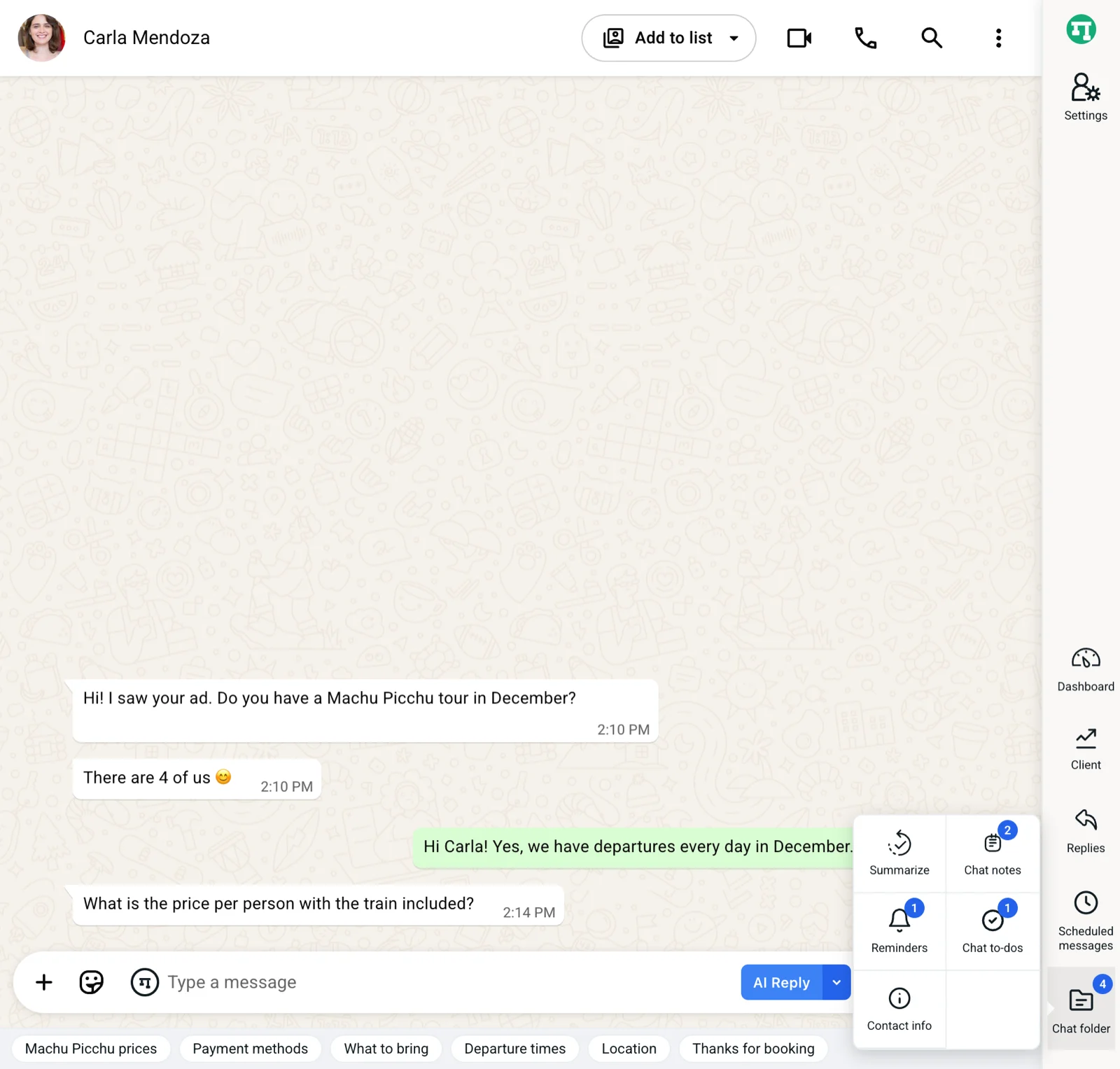
To follow up with customers on WhatsApp using Kamay, you have four tools inside the chat itself: notes, to-dos, reminders and scheduled messages. On top of that you get tasks for each lead, and the assistant can create them for you if you ask in your own words.
Follow up with customers on WhatsApp from the Chat folder
Open the conversation with your customer and, in the Kamay icon bar, click Chat folder. Its menu has Summarize, Chat notes, Reminders, Chat to-dos and Contact info. Everything opens in a panel next to the conversation. The number on the folder shows how many notes, to-dos and reminders you have for that person.
1. Chat notes and to-dos
Chat notes is for what you don’t want to forget about that person: their size, their delivery address, what they asked for last time. Type in “Write a note about this contact…” and press Enter or click Add. You can edit notes with ✎ or delete them with 🗑.
Chat to-dos is a short list of things to do for that customer, with no date. Type in “Add a to-do…”, click Add, and tick the box when you finish: it moves to Completed. To-dos can’t be edited and they don’t notify you. If you need something to alert you at a certain time, use a reminder.
Chat notes aren’t connected to a lead’s notes, which you write in the lead’s record, on the Activity tab.
2. Chat reminders
- In the Folder, click Reminders.
- Type a Title (required) and, if you want, a description.
- Pick a date and time. By default it’s today at 9:00 AM: if that time has already passed, change it or you’ll see “Date must be in the future”.
- Click Add.
At the time you set, you get a desktop notification with the contact’s name and the title. Clicking it brings WhatsApp Web to the front, but it doesn’t open that chat: you’ll need to find it yourself.
Reminders can’t be edited or snoozed. If the date changes, delete the reminder and create a new one.
3. Lead tasks
If the customer is already a lead in your pipeline, open their record, go to the Tasks tab and click + Create task. You also have the New task icon in Client and on the cards of the board. If they aren’t a lead yet, see how to turn a chat into a lead in your sales pipeline.
Each task has a type (Call, Email, Meeting or Task), a description, a date and time, and the Remind me option, a number of minutes, hours, days or weeks before. If that alert falls in the past, the task is saved without a reminder, so double-check the time.
Tasks also appear in Dashboard › Summary, under Upcoming tasks and Overdue Tasks, where you can complete them. On that same screen, Inactive (>7 days) shows the leads with no activity for more than a week. You can find step-by-step instructions for editing and completing tasks in lead follow-up tasks.
When you get alerts
Reminders and tasks alert you with a system notification while Chrome is open, even if you closed the WhatsApp tab. If Chrome is closed they don’t alert you: when you open it again, the overdue ones arrive.
4. Scheduled messages
To write a message now and have it go out on its own later:
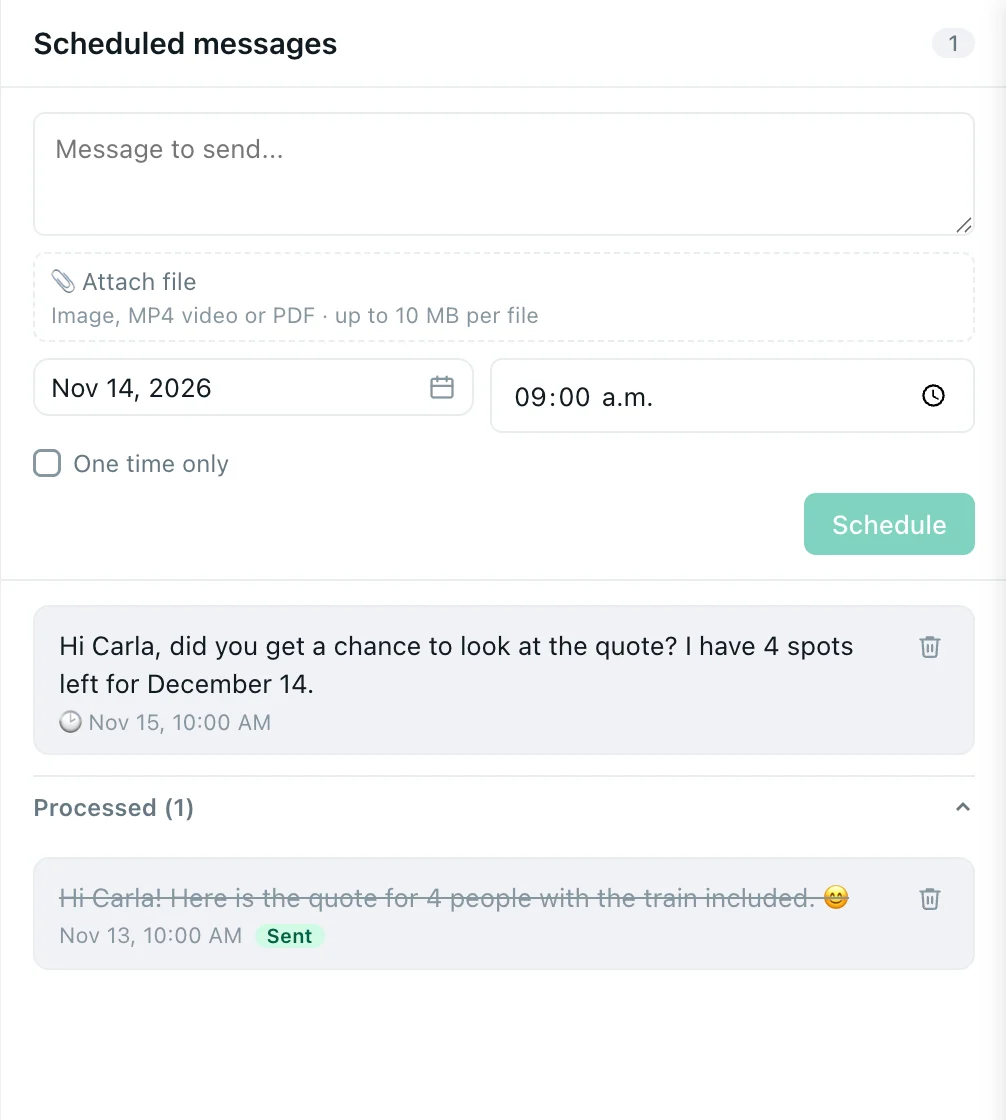
- With the chat open, click the Scheduled messages icon. You can also get there from the clock on a board card.
- Type the text in “Message to send…”.
- If your plan allows it, add a file with 📎 Attach file: an image, an MP4 video or a PDF.
- Pick a date and time.
- Click Schedule.
When it goes out, it moves to Processed with Sent or Failed and the reason. Scheduled messages can’t be edited: delete it and schedule it again.
Your browser sends the message. For it to go out on time, your computer must be on, with Chrome and a WhatsApp Web tab open. If the tab is missing, the message waits and goes out as soon as you open it.
How many scheduled messages you can have pending at once, and whether you can attach files, depends on your plan. You can see it in Settings › Plan & usage and on Pricing.
5. Ask the assistant to do the follow-up
Inside the chat, the assistant button (to the left of the message field) has ready-made shortcuts: Create a follow-up task, What was left pending?, Summarize this conversation and Draft the next message, which leaves the draft in the field without sending it.
In Dashboard › Assistant you can ask in your own words, for example: “Remind me to call Ana on Tuesday at 4”. The assistant creates the task without asking you to confirm, alerts you at that time and tells you which date it set. If you don’t give a time, it uses 9:00 AM. Check the date in case it understood a different Tuesday. It can also mark a task as done, change its date or add a note to a lead.
It can also tell you what you have noted in a chat and which messages are scheduled, but it doesn’t create or edit them: you do that by hand. If you ask it to send a message, it always shows you the text and waits for you to click Send. More details in what you can ask the assistant.
To start each morning with all of this in view, read how to use the “Today” block.