WhatsApp customer record: stages, value and notes
The lead record opens next to the chat: change stages in one click, edit value, priority and close date, and keep notes, tasks and related people.
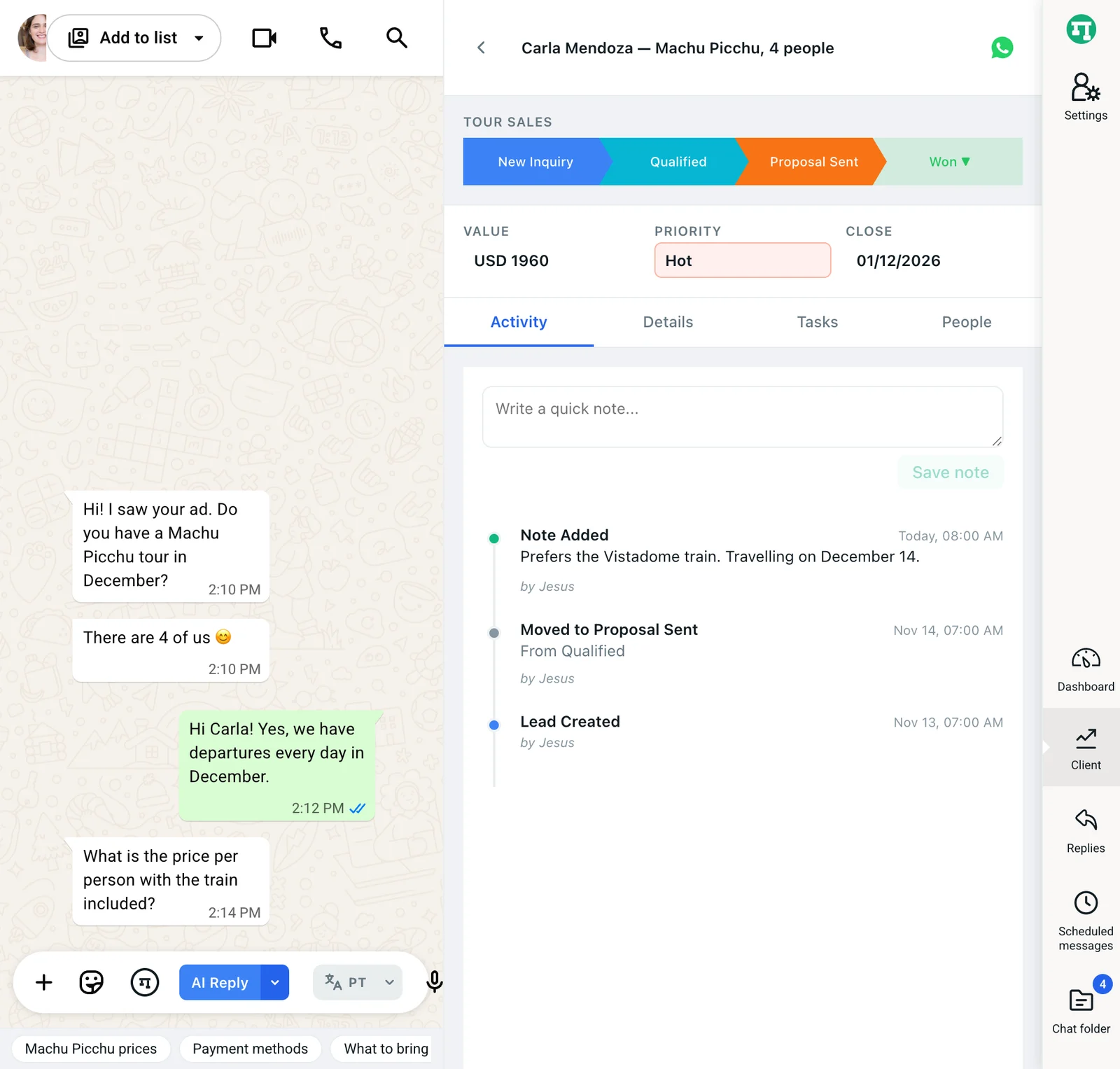
The WhatsApp customer record is the Kamay panel that opens next to the conversation and shows a lead: which stage it’s in, how much it’s worth, when you expect to close it and everything that has happened with it. From there you move it between stages with one click, without leaving the chat.
1. Open the customer record on WhatsApp
- Open the customer’s chat and click Client in the Kamay bar.
- You’ll see the Leads list for that contact: at the top, their Contact details (name and phone); below, one card per lead, grouped by pipeline.
- Click the lead’s card. The Back arrow takes you back to the list.
Each card shows the title, value, priority, the stage with its probability and the last activity. If the lead has an overdue task, it shows “Overdue task”. Its New note and New task icons let you jot something down without opening the record.
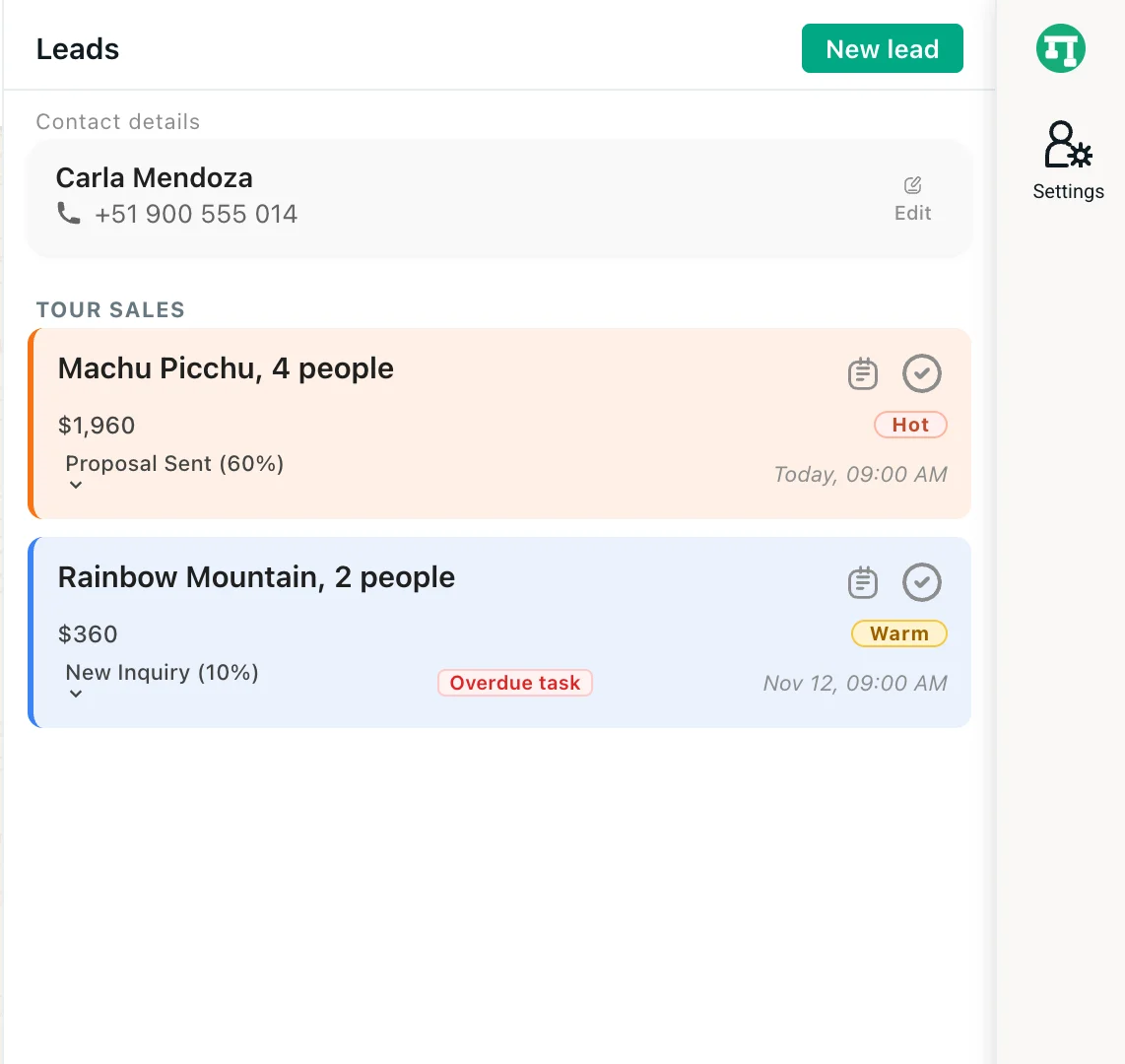
If the contact has no leads yet, Client opens the form to turn the chat into a lead, and once you create it you go straight to its record. The same record also opens when you click a card on the pipeline board.
2. Change stage from the bar
At the top of the record you’ll see the pipeline name and its stages in a row, each with its own color. The current stage and the earlier ones are filled in; the next ones are lighter. Hover over a stage to see its name and its probability.
- To move forward or back, click the stage. The lead moves right away, you see “Stage updated” and the card changes column on the board.
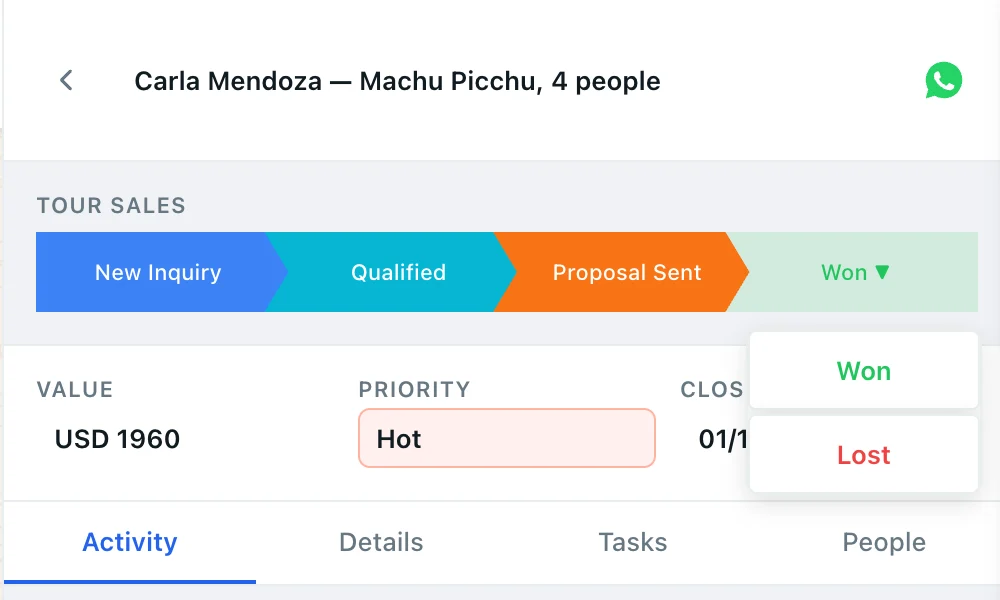
- To close the lead, click the last step, Won ▼ (or Lost ▼, if it’s already lost). A menu opens with Won and Lost. Won asks for the Final deal value; Lost asks for a reason. If you cancel, the lead stays where it was. The full detail is in how to mark a sale as won or lost.
3. Edit value, priority and close date
Below the bar there are three fields you edit with one click:
- Value: choose the currency and type the amount. Enter saves; Esc discards.
- Priority: Hot, Warm or Cold.
- Close: the date you expect to close, picked from the calendar.
The lead’s title, in the header, also changes with one click. Every change shows “Lead updated”. The company and the phone, however, can’t be edited.
4. Use the tabs
- Activity: the lead’s history, with its creation, stage changes, edited fields, tasks and people. At the top you have “Write a quick note…” and Save note. These notes can’t be edited or deleted, and they’re different from the Chat notes in the Chat folder, which are covered in how to follow up with your customers.
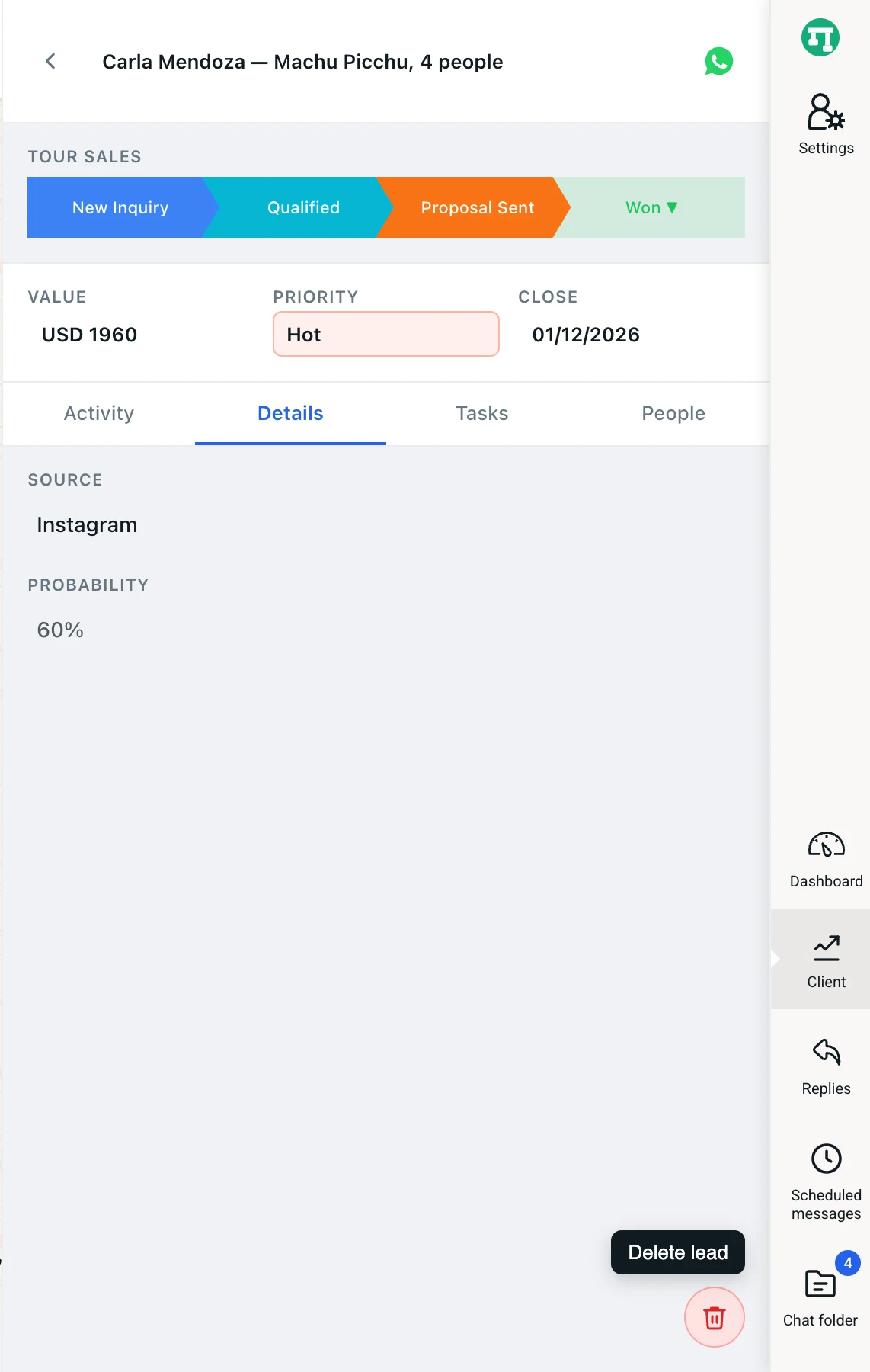
- Details: the Source, which you edit with one click and can’t leave empty, and the Probability, which comes from the stage.
- Tasks: calls, emails and meetings with a date and a reminder.
- People: add other WhatsApp contacts to the lead, for example the person paying for the trip. Type at least 2 letters in “Search WhatsApp contacts…”, pick one, give them a Role and, if you want, click Mark as primary.
5. Delete a lead
On the Details tab, click the trash can (Delete lead) and confirm. You can’t undo it: its history is lost. Its pending tasks are not deleted with it, so complete or delete them first so they don’t keep reminding you. Deleting a lead frees up a spot in your plan’s lead limit.
To organize what comes next with each customer, read how to use a lead’s tasks.