Organize WhatsApp customers every day with the Today block
Ask the assistant what's on today and get your tasks, scheduled messages and chats awaiting a reply as cards you can resolve with one click.
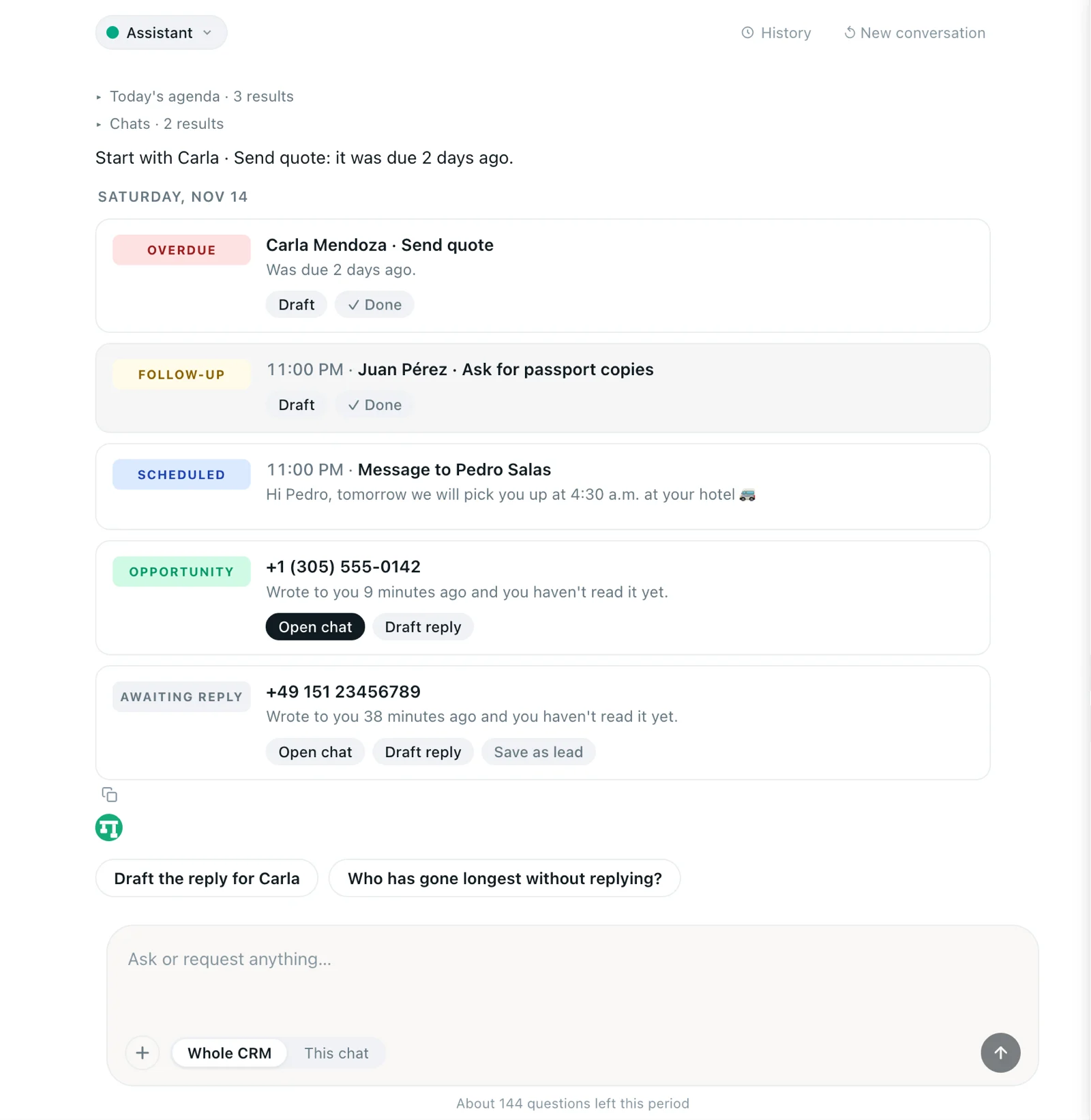
The “Today” block helps you organize WhatsApp customers without checking chat by chat. You ask the assistant what’s on today and it answers with cards for tasks, scheduled messages and chats waiting for a reply, each with buttons to act right there. It’s the fastest way to know what to do today with your customers.
How to open it
- Open the Dashboard and go to the Assistant tab.
- Check that the scope is Whole CRM. It doesn’t appear in This chat, because that scope looks at a single conversation.
- Tap the What’s on today? suggestion or type it in the field.
It’s a question to the assistant like any other, so it counts toward your plan’s allowance. If it’s your first time with the assistant, first read what you can ask the Kamay assistant.
What it shows
At the top there’s a sentence that recommends where to start, for example: “Start with Carla · Send quote: it was due 2 days ago.” Below it, today’s date and the cards, already sorted by urgency:
- Overdue tasks.
- Leads who wrote to you and are waiting for a reply.
- Tasks due today, by time.
- Scheduled messages going out in the next 24 hours.
- Chats waiting for a reply that aren’t leads yet.
If there’s nothing, you’ll see “Nothing scheduled for today.” and, if nobody wrote to you without an answer, “No one is waiting on you”.
Where each card comes from
Each card has a colored label:
- Overdue: an incomplete task whose date has passed, with the lead’s name and how long ago it was due. Only the 3 most recent show up. If you have more, “Overdue in total” appears at the top with the number.
- Follow-up: a task due today, with its time and its type (for example, call or meeting).
- Scheduled: a scheduled message going out in the next 24 hours. It shows “Message to…” with the recipient and the text.
- Opportunity: the chat of a lead who wrote to you and you haven’t answered.
- Awaiting reply: a chat that wrote to you and you haven’t answered, from someone who isn’t a lead yet. It tells you whether you haven’t read it yet or you read it and didn’t reply.
- Replied: replaces Opportunity or Awaiting reply when you send a message to that chat from the assistant, in this same conversation.
Tasks are the ones you create in a lead’s profile or by asking the assistant. Reminders you save in the Chat folder don’t appear in this block.
Chats waiting for a reply have their own rules: only those from the last 7 days count, with no groups or archived chats, and at most 3 show up, with leads first. To see more, ask the assistant “Who’s been waiting longest for my reply?”
What each button does
- Open chat: opens that conversation in WhatsApp. It appears on chats that are waiting, on scheduled messages and on tasks for a lead who has a chat.
- Draft reply (on Opportunity and Awaiting reply): asks the assistant to read that chat and suggest a reply. Nothing is sent until you click Send on the confirmation card. If you send it, the card changes to Replied.
- Save as lead (on Awaiting reply): creates the lead with the chat’s name and number. If it was already a lead, it doesn’t duplicate it. The card changes to Opportunity and you can work on it in your sales pipeline. If you’ve hit your plan’s lead limit, you’ll see “You’ve reached your plan’s lead limit”.
- Draft (on a lead’s tasks): asks the assistant for a message to that lead about the task. It also goes through the confirmation step.
- ✓ Done: marks the task as completed. The card is dimmed in the thread; if you made a mistake, click Undo.
Open chat, Save as lead, ✓ Done and Undo don’t use up assistant questions. Draft and Draft reply do, because they ask it a new question.
Scheduled cards only have Open chat. If the text is no longer valid, delete it from the Scheduled messages icon in that chat. And remember that a scheduled message only goes out if Chrome and WhatsApp Web are open at that time; if not, it goes out when you open them again.
A morning routine to organize WhatsApp customers
- Open WhatsApp Web and go to Dashboard › Assistant. If you see yesterday’s conversation, click ↺ New conversation. The cards are a snapshot of the moment you asked: the ones in an old thread, including those you reopen from History, don’t update.
- Ask What’s on today? and read the sentence at the top. It’s the first thing worth handling.
- Resolve the Overdue cards first. Do what needs doing and mark them with ✓ Done. If they need to be moved, ask the assistant: “move Carla’s task to Thursday”.
- Continue with the Opportunity and Awaiting reply cards: use Draft reply or Open chat and answer yourself. If an Awaiting reply card is a new customer, save it with Save as lead.
- Go over the Scheduled cards to confirm the message is still right, and leave Chrome open so they go out.
- When you’re done, ask What’s on today? again to see what’s left.
To create the tasks that feed this block, continue with how to follow up with your customers on WhatsApp.