AI assistant for WhatsApp: what you can ask it
What you can ask the Kamay assistant in WhatsApp Web, which actions it confirms with you first, and how many questions each plan includes.
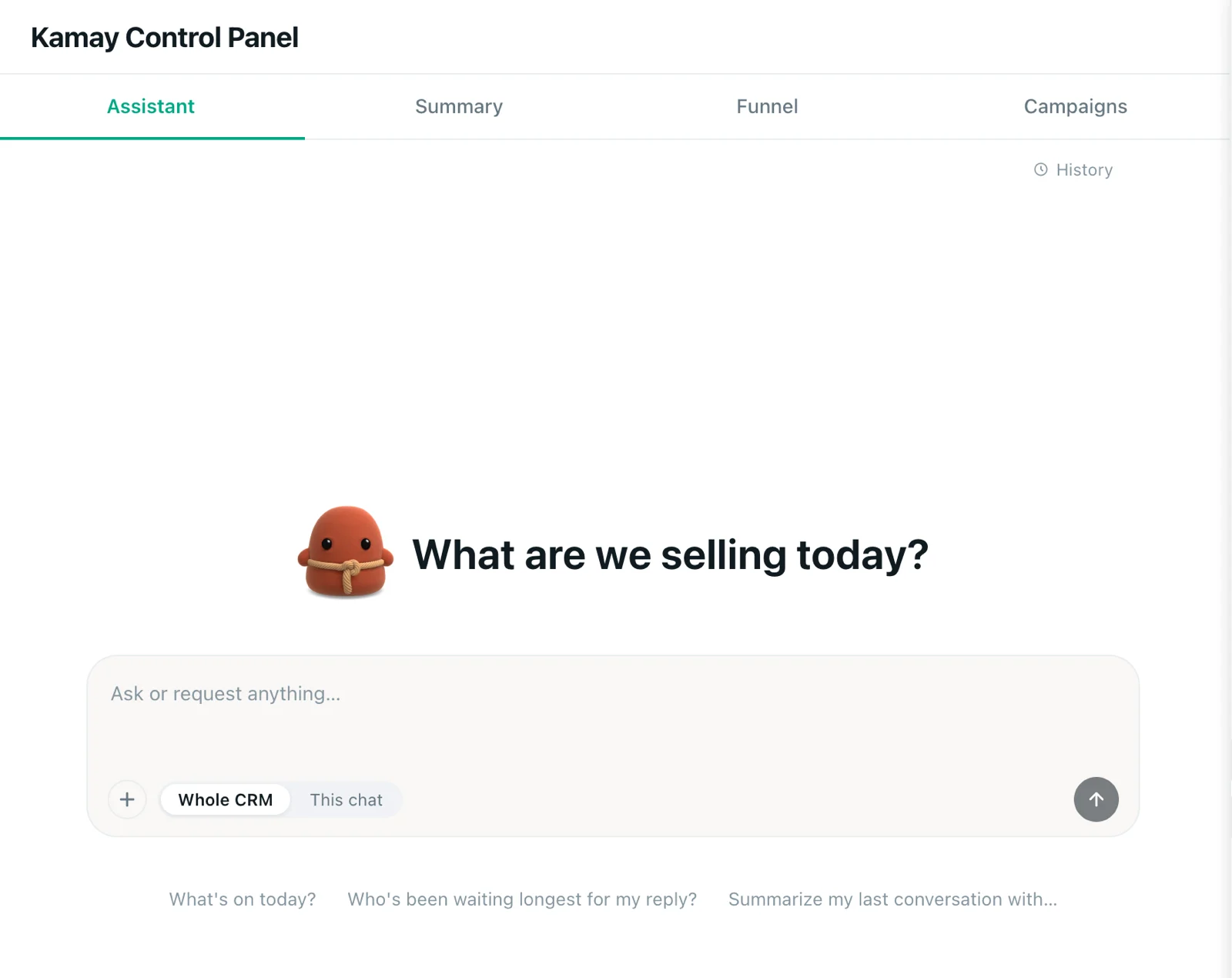
Kamay includes an AI assistant for WhatsApp that knows your CRM and reads your chats when you ask it something. You write to it like you would to a person, and it looks things up, creates tasks, moves leads or prepares messages for you. No message goes out to a customer unless you confirm it.
Where the assistant is
There are two ways in, and they share the same conversation:
- Dashboard › Assistant: the tab that opens first in the Dashboard, with suggestions like What’s on today?.
- The assistant button inside the chat, to the left of the text field (hover over it and it says Kamay Assistant). It opens a box to ask about that conversation, with shortcuts like Summarize this conversation or Draft the next message.
The first time, it asks your permission to read your conversations and your CRM. Click I understand — turn it on.
How to ask for things
Type and press Enter. Before your first message, choose the scope:
- Whole CRM: looks at your entire account, with leads, tasks, campaigns and the chat list.
- This chat: focuses on the conversation you have open.
The scope stays fixed for the whole conversation. To change it, start another one with ↺ New conversation. Previous ones stay for 30 days in History.
Examples of what you can ask the WhatsApp AI assistant
Look things up
- “What’s on today?” It answers with cards, which we explain in the “Today” block.
- “Who’s been waiting longest for my reply?”
- “Summarize my last conversation with Carla.”
- “Which leads haven’t moved in a week?”
Create
- “Remind me to call Juan on Tuesday at 4.” It creates a task; if you give no time, it sets 9:00. More ideas in how to follow up with your customers.
- In This chat: “Save this chat as a lead.”
- “Note that he asked for an invoice.” It adds a note to the lead.
- “We only ship on Fridays.” It saves this in your business profile.
Move
- “Move Carla to Proposal sent.”
- “Mark Pedro as won.”
- “Move Juan’s task to Thursday.”
Send
- “Tell Carla her order ships tomorrow.”
- In This chat: “Draft the next message.” It leaves the draft in the WhatsApp text field without sending it.
- A campaign from a list (see below).
Which actions ask for confirmation
What only reads, it does without asking. What talks to a customer or changes your pipeline shows up first on a card:
- Sending a message. The “Send to…” card shows the exact text, with Send and Cancel, one message at a time.
- Move stage, Mark as won, Mark as lost and Delete task, with the Confirm button.
- Launching a campaign. The “Launch…” card says how many messages go out today and how many wait until tomorrow, and you approve it with Confirm too.
A sent message can’t be undone, and closing a lead changes your numbers: if the assistant misunderstood a name, the card is your chance to catch it. It also stops a send on its own if the number isn’t the one you asked for, if that person already received that same text, if several contacts share the same name or if you’ve reached your daily limit.
Note: creating leads, notes and tasks, or marking tasks as done, it does without asking.
The only attachment: a CSV or Excel list
The assistant accepts only one kind of file: the recipient list for a campaign. In Dashboard › Assistant, click + and choose Campaign from CSV or Excel. It accepts .csv, .txt, .xlsx, .xlsm and .xls, up to 10 MB for CSV and 6 MB for Excel. If you’re not sure which columns to use, click Download sample template.
Then ask it for the message (“Write them a greeting using their name”) and, when you’re happy with it, ask it to launch the campaign and click Confirm. The campaign also appears in Dashboard › Campaigns and only goes out while Chrome and WhatsApp Web are open. The full process is in your first campaign.
Usage limits
Each plan includes a number of assistant questions per period, which renews every month from the date you signed up or subscribed. New accounts start on Beta.
| Plan | Assistant questions (approx.) | Sends per day |
|---|---|---|
| Free | 50 | 20 |
| Beta | 300 | 50 |
| Standard | 1,000 | 100 |
| Pro | 3,000 | 300 |
Daily sends are shared by the assistant and campaigns. After the first answer, you’ll see below the field how many questions you have left. The details are in Settings › Plan & usage, and the plans are on the Pricing page. Stop cuts off the answer on screen, but the question still counts.
What it doesn’t do
- It doesn’t send files, images or audio: only text.
- It can’t see images or listen to voice notes; it only knows they’re there and reads the caption.
- It doesn’t read groups or archived chats.
- It doesn’t create stages, edit a lead’s details or delete leads.
- It doesn’t create scheduled messages or quick replies.
- It doesn’t schedule campaigns for a future date.
- It doesn’t answer topics unrelated to your business.
- If you reload the page, the open conversation closes; you can get it back from History.
What data it uses
When you ask it something, the messages it needs to read (up to 50 per chat) and the CRM data it looks up go through Kamay’s server to an AI provider. The WhatsApp messages it read are deleted from the server when each answer finishes; your questions, its answers and the texts it sent are kept for up to 30 days for History.
To get the most out of it every morning, continue with the “Today” block.