Sales kanban board: move your leads by stage
How to read and use the Kamay sales kanban board: columns by stage, weighted value, dragging cards and the buttons on each lead.
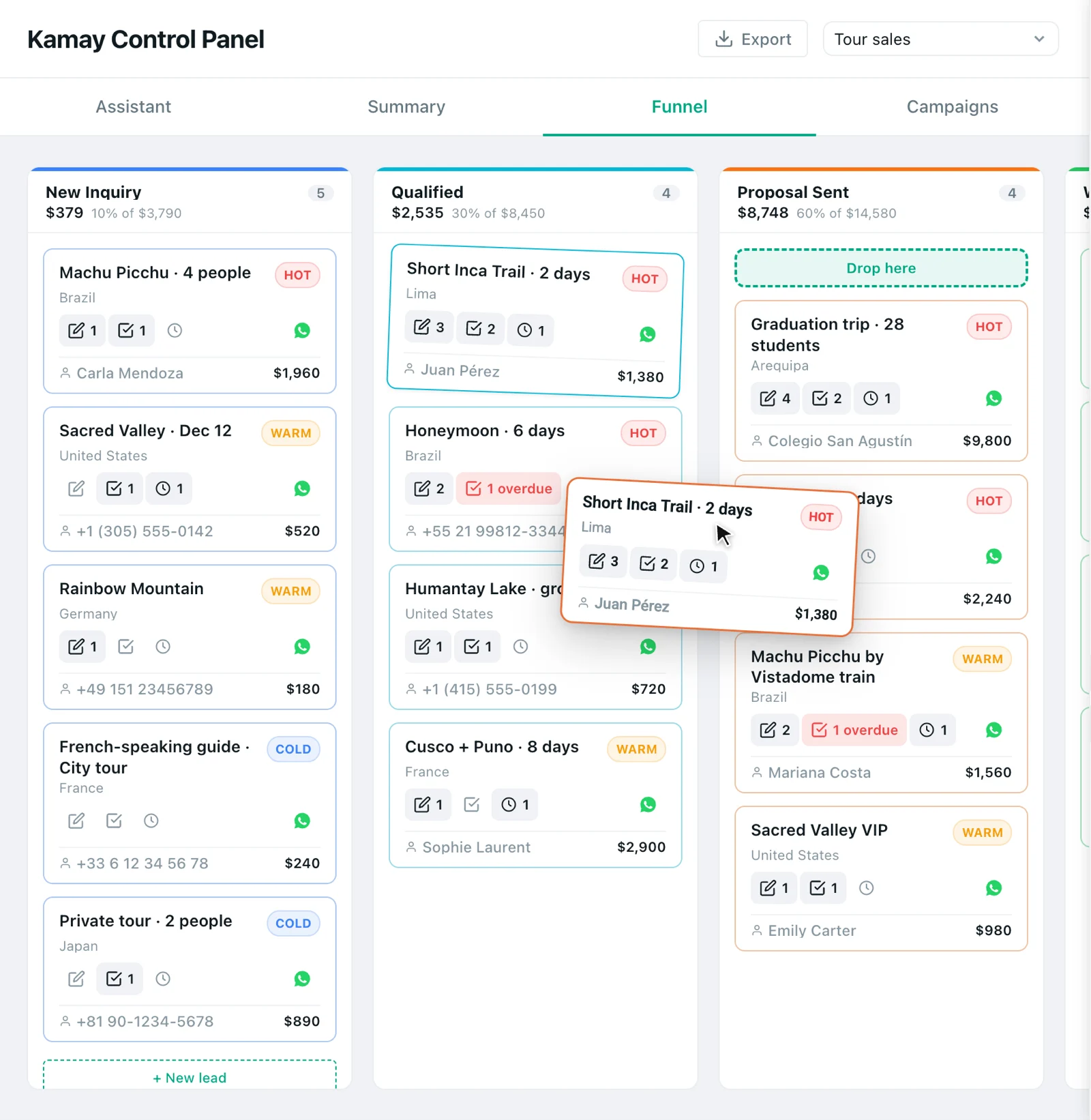
The Kamay sales kanban board shows your leads as cards, with one column for each stage of your pipeline. You open it in Dashboard › Funnel and, when a sale moves forward, you drag its card to the next column.
How to open the sales kanban board
- Click Dashboard in the Kamay bar.
- Go to the Funnel tab. The board fills the whole screen and closes when you open a chat.
- If you have more than one pipeline, choose it in the selector at the top.
The columns are the stages you defined in Settings › Funnel Settings, in the same order.
What each column shows
- The name of the stage, with a stripe of its color, and how many cards it has.
- The weighted value: the value of its cards multiplied by the stage’s probability. Below it, a line like “60% of” and the total reminds you where it comes from. So in Proposal Sent, Carla Mendoza’s Machu Picchu tour (USD 1,960) contributes USD 1,176.
- Up to 5 cards. If there are more, click Load more. The column’s figures add up the loaded cards, so they go up as you load more.
- No leads if the column is empty.
Amounts are shown in the currency you choose in Settings › Settings › Currency; leads in another currency are converted.
What’s on each card
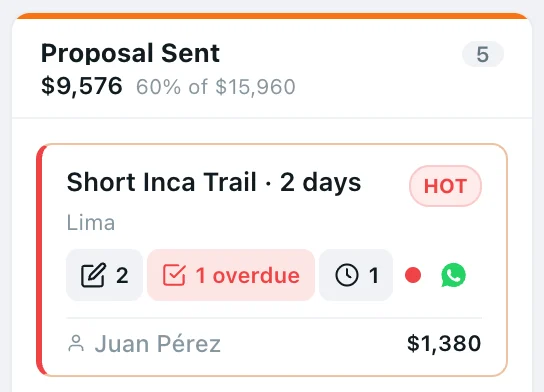
- The lead’s title and its priority: red if hot, amber if warm and blue if cold.
- The company, if it has one.
- Four buttons, with a number when something is pending:
- Add note: opens a field under the card to write a note for the lead. The number counts its notes.
- New task: opens the task form. It shows how many upcoming tasks there are, or turns red with “overdue” if one is past due. It’s explained in lead follow-up tasks.
- Scheduled messages: opens the customer’s chat with its scheduled messages panel.
- Open chat: opens the conversation in WhatsApp and shows the unread messages.
- A red dot if it has had no activity for more than 7 days (No activity for +7 days).
- At the bottom, the contact’s name and the lead’s value.
If the lead has no WhatsApp chat, the last two buttons are disabled and say “This lead has no WhatsApp chat”.
Clicking the card, outside the buttons, opens the lead record, where you edit its details and see its history.
1. Move a lead to another stage
- Drag the card with your cursor to another column.
- When you pass over the column, Drop here appears.
- Drop the card. You’ll see “Lead moved successfully”.
If you drop it on a won (100%) or lost (0%) stage, a window opens first for the final value or the reason. If you click Cancel, the card stays where it was.
2. Create a lead from the board
+ New lead, at the bottom of the first column, takes you to Client. Creating a lead needs that person’s chat to be open: open their conversation in WhatsApp first. It’s explained in how to turn WhatsApp chats into customers.
When a lead reaches the end of the pipeline, continue with how to mark a sale as won or lost.