How to turn WhatsApp chats into leads with Kamay
Open the chat, click Client and Kamay suggests a title, value, priority and close date from the conversation. Review the fields and create the lead.
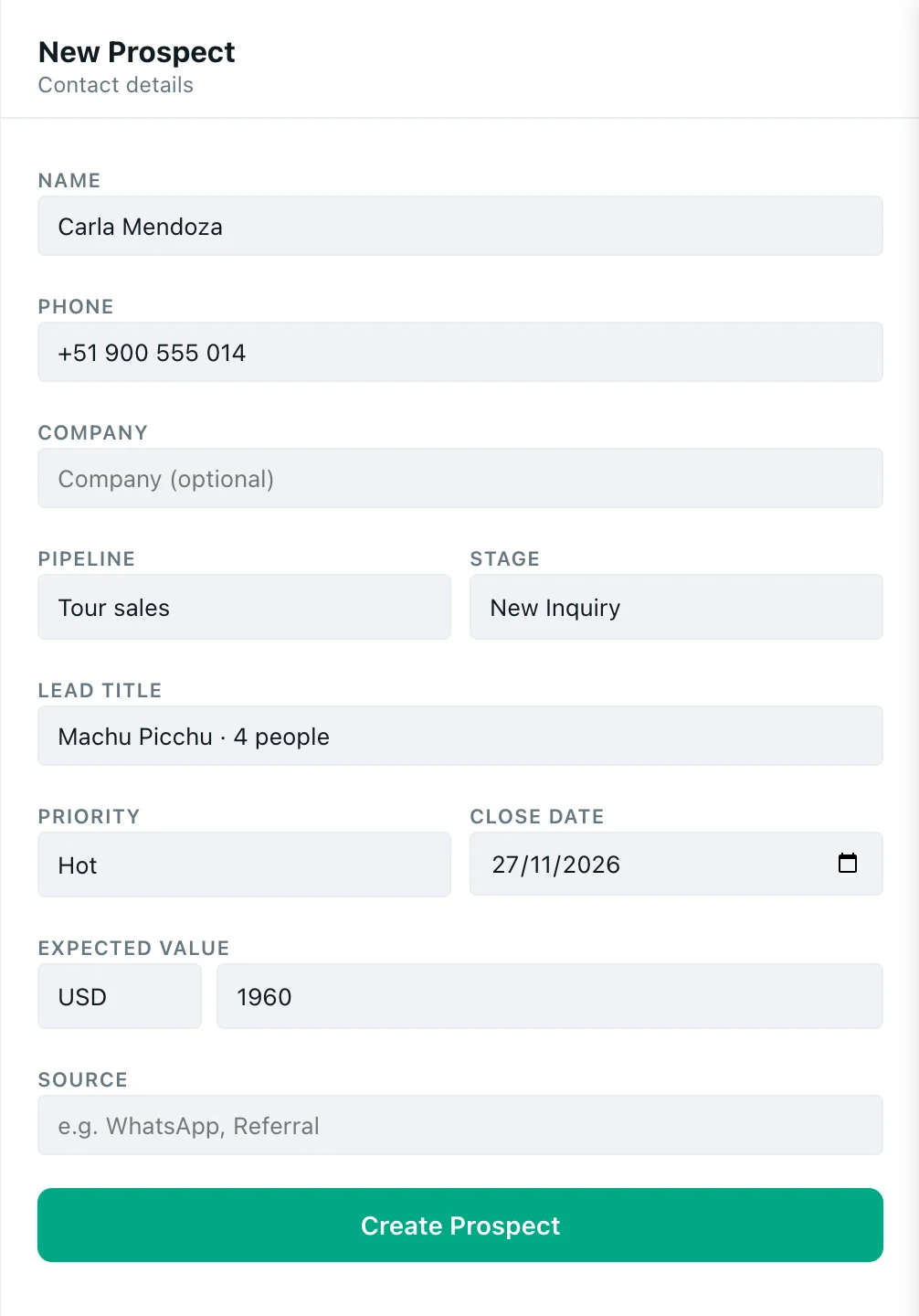
To turn WhatsApp chats into leads (potential customers), open the conversation and click Client in the Kamay bar. The AI reads the latest messages and suggests the lead’s details; you review them and click Create Prospect.
1. Open the chat and click Client
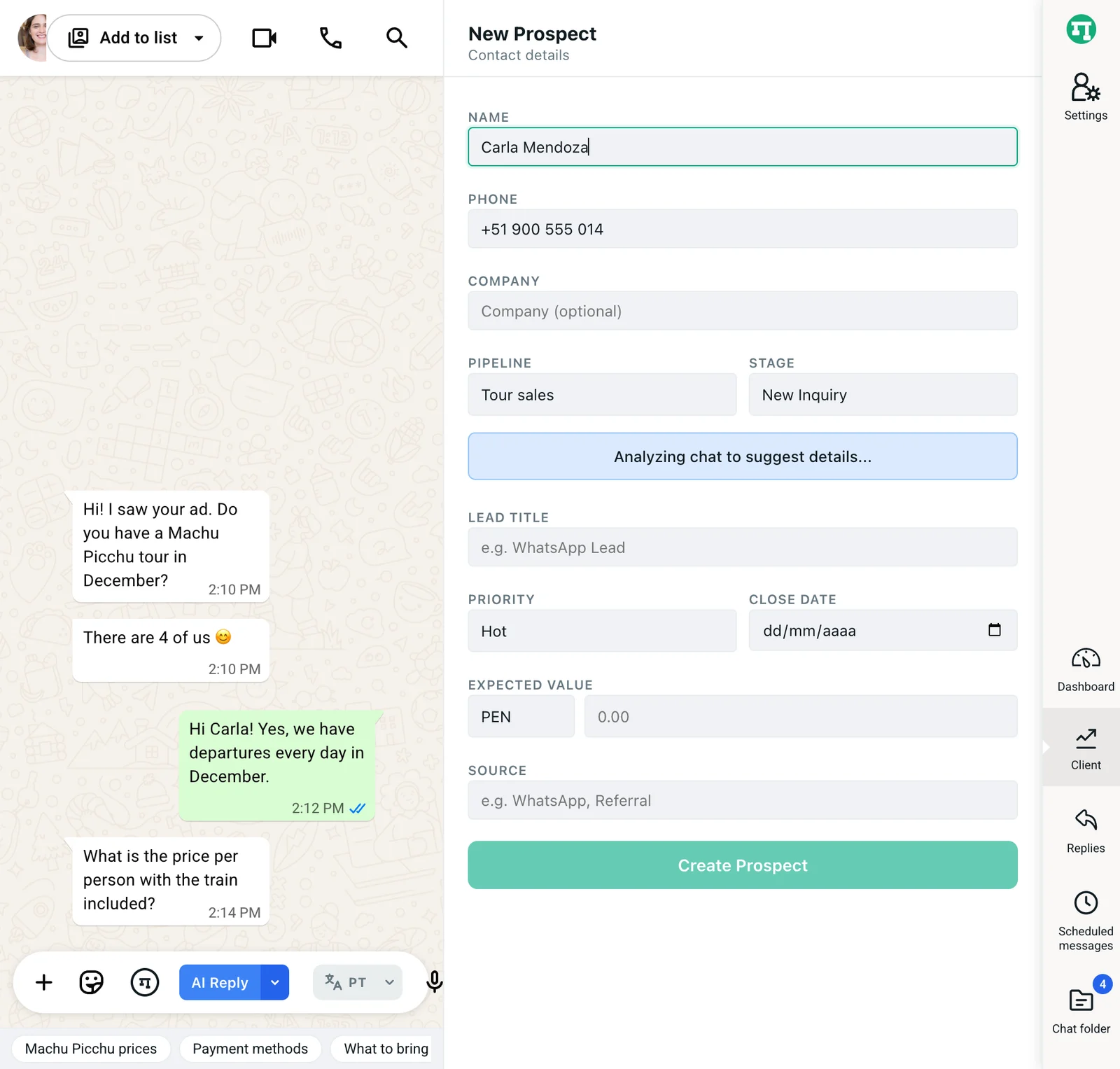
Go into the conversation, for example the one with Carla Mendoza, who is asking about Machu Picchu for four people. In the Kamay icon bar, click Client. A narrow panel opens next to the chat.
- If the contact has no leads yet, the panel goes straight to the New Prospect form.
- If they already have some, you’ll see their list. Click New lead to add another one. One contact can have several leads, for example two different trips.
2. Let the AI suggest the details
When the form opens, you’ll see “Analyzing chat to suggest details…”. The AI reads the last 20 messages of the chat and suggests the title, value, currency, priority and close date.
Every time the form opens on a chat that has messages, it uses one suggestion from your plan’s allowance. If you run out, you’ll see the limit notice and you can fill in the fields by hand.
| Plan | Lead suggestions per period | Total leads |
|---|---|---|
| Free | 10 | 20 |
| Beta | 50 | 200 |
| Standard | 100 | 500 |
| Pro | Unlimited | Unlimited |
You can see what you’ve used in Settings › Plan & usage. Plans are on the Pricing page.
3. Review each field
- Name: comes from the WhatsApp contact. You can change it.
- Phone: the one from the chat. You can’t edit it.
- Company: optional.
- Pipeline and Stage: these start as your default pipeline and its first stage. Change them if the customer is further along. You can adjust stages in how to set up your pipeline.
- Lead title: the only required field. Describe the sale, not the person: “Machu Picchu, 4 people”.
- Priority: Hot, Warm or Cold.
- Close date: when you expect to close. When you create the lead, it has to be tomorrow or later.
- Expected value: the currency (MXN, USD, PEN, COP, ARS, CLP or EUR) and the amount. It starts on PEN; check that the right currency is selected after the suggestion.
- Source: where the customer came from, for example “Instagram” or “Referral”.
You can’t change the company or the phone after the lead is created, so check them now. You can edit everything else later in the lead’s record.
4. Create the lead
Click Create Prospect. The new lead’s record opens and its card appears in the stage you chose on the pipeline board.
When you can’t turn a WhatsApp chat into a lead
- No chat open. Client shows “Open a WhatsApp chat to view the lead”.
- In a group. You’ll see “Not available in groups”. Leads are created from 1:1 chats.
- Lead limit reached. All your leads count, including won and lost ones. When you reach the maximum you’ll see “You have reached your plan’s maximum.” Deleting a lead frees up a spot.
Other ways to create leads
- With the assistant. Inside the chat, with the This chat scope, ask “Save this chat as a lead”. It creates it without asking for confirmation. More in what you can ask the assistant.
- By importing a CSV. In Dashboard › Funnel, click Export and open the Import tab. Choose a pipeline and stage, map the columns and click Start import. Kamay skips numbers that aren’t on WhatsApp and leads that are already in that pipeline.
If you haven’t installed Kamay yet, start with how to install Kamay on WhatsApp Web. Once the lead exists, continue with the lead’s record, where you move it between stages with one click.