How to install Kamay, the WhatsApp Web CRM
Install Kamay in Chrome, sign in with your WhatsApp number with no password, finish the three-step setup and learn what each icon in the sidebar does.
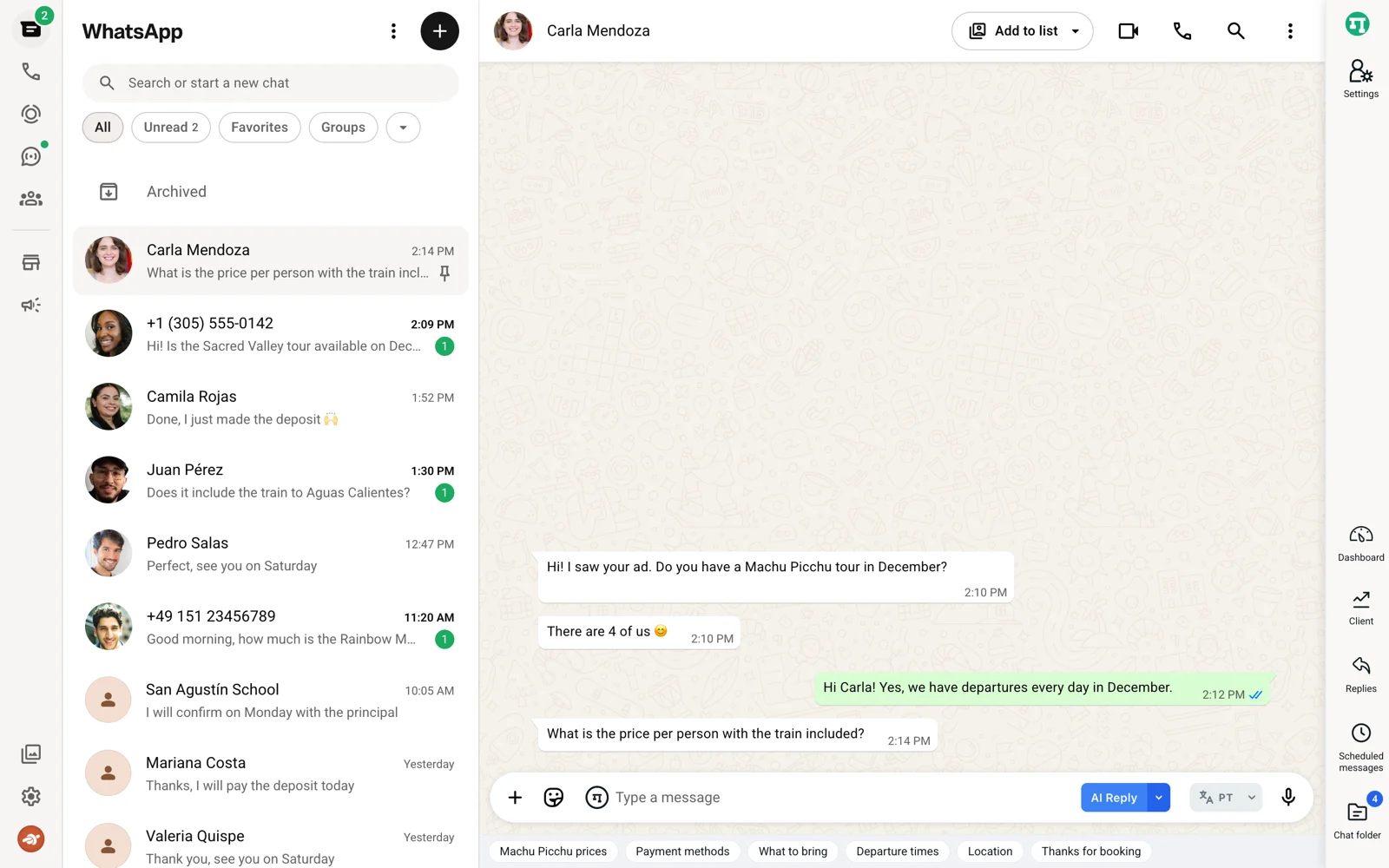
Kamay is a Chrome extension that turns WhatsApp Web into a CRM: your chats become leads in a sales pipeline, with tasks, scheduled messages and an AI assistant, without leaving the WhatsApp tab. Installing this WhatsApp Web CRM takes a couple of minutes and asks for no username or password: your account is the WhatsApp number you already use.
What you need to use the WhatsApp Web CRM
- Chrome on a computer. Kamay only works on WhatsApp Web in desktop Chrome. It does not work on your phone or in the WhatsApp desktop app.
- Your WhatsApp Web session open, linked to your phone as usual.
1. Install the extension
- Go to kamaychat.com and click Add to Chrome.
- Confirm the installation in the Chrome window.
- Kamay opens WhatsApp Web for you. If you already had a WhatsApp tab open, it reloads it and brings it to the front.
If it’s your first time using WhatsApp Web on that computer, link it by scanning the QR code from your phone.
From any other tab, the Kamay icon in the Chrome toolbar gives you the Open WhatsApp Web button.
2. Your account is your WhatsApp number
There is no sign-up or login: Kamay reads the number of the WhatsApp Web session you have open and signs you in on its own.
It doesn’t send that number to its server. It sends a hash, a fingerprint that identifies the number without containing it. The full number stays in your browser. What does get saved on Kamay’s server is what you record in the CRM, including your customers’ phone numbers.
3. The three-step setup
The first time, a setup appears with three steps: Account, Tune AI and Set up CRM.
- What should I call you? Type your name or your business name; it’s required. You can add an email, but it isn’t used for anything yet.
- What do you do? Pick your line of business and the tone the AI will write in: Approachable, Professional or Direct. The This is how Kamay will reply preview shows you the result. You can skip it with Skip for now.
- How do you sell? Choose the stages of your pipeline: General is marked Recommended, and there are also Sales, Bookings and Services templates. Click Finish.
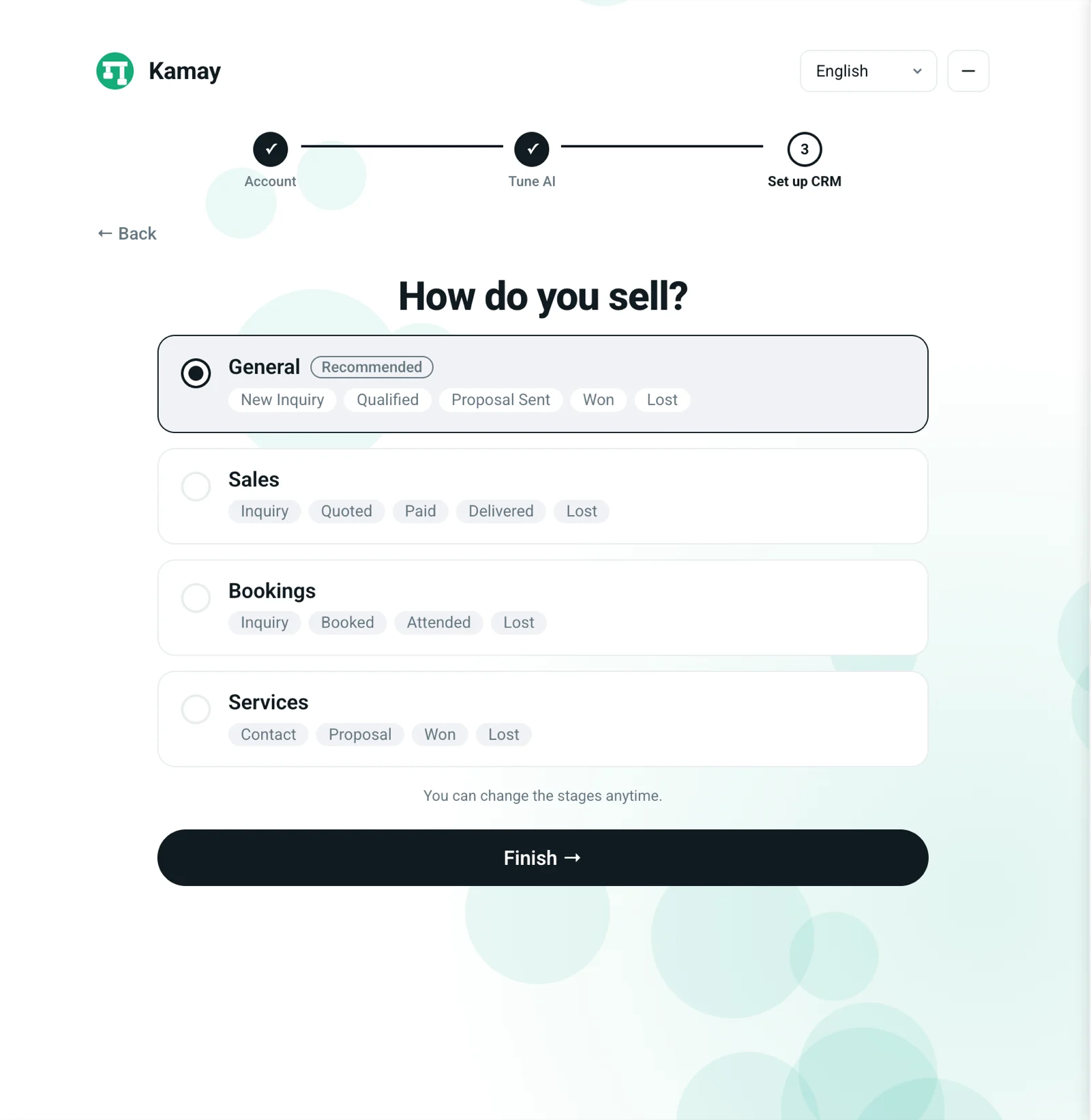
Take your time with the third step: the templates are only offered during setup. If you already had a pipeline, you’ll see Your current pipeline and it stays as it is. Afterwards you can change the stages by hand, as explained in how to build a sales pipeline and its stages.
When you finish, the All set! screen suggests three first actions and, if it finds them, up to three chats that look like customers. Click Go to my chats to start.
Later skips the whole setup. Until you finish it, the Kamay icons look dimmed and take you back to it, and the Set up lock icon picks it up again. Your progress is saved in your account, so you can finish it on another computer.
4. A tour of the Kamay sidebar
Kamay lives in an icon bar on the right of WhatsApp Web. When you finish the setup, a guide walks you through it step by step. You can replay it in Settings › Settings › User guide › Open the guide.
- Settings: at the top, next to the logo.
- Dashboard: your control center, with the Assistant, Summary, Funnel and Campaigns tabs.
- Client: with a chat open, turns the conversation into a lead or shows the one it already has.
- Replies: your quick replies, to send what you repeat most with one click.
- Scheduled messages: write a message now and have it go out at the time you choose. It only goes out if Chrome and WhatsApp Web are still open on your computer at that moment.
- Chat folder: Summarize, Chat notes, Reminders, Chat to-dos and Contact info.
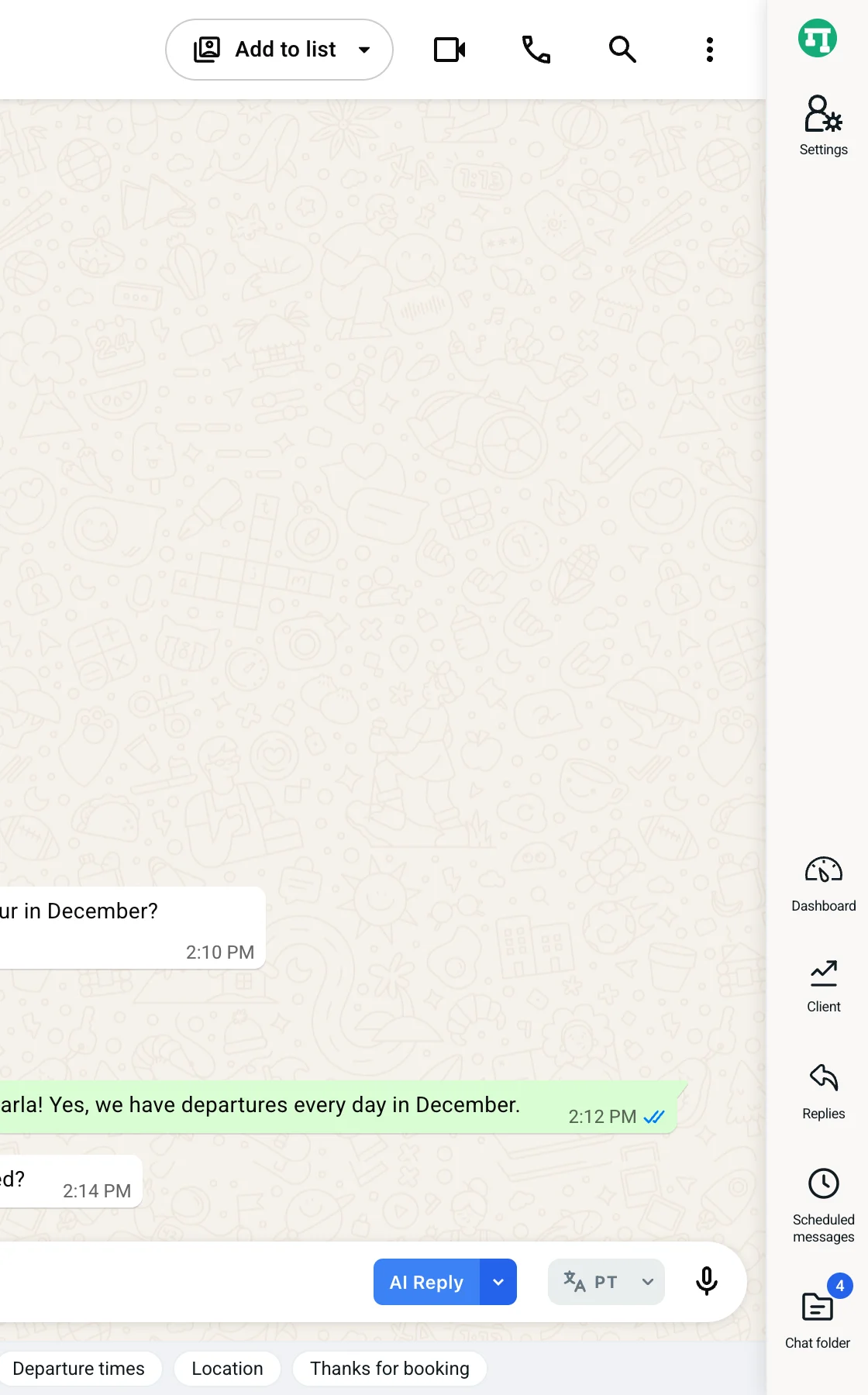
With a chat open, Client, Replies, Scheduled messages and the Chat folder open in a panel next to the conversation, which you can widen by dragging its edge. The Dashboard and Settings fill the whole screen and close when you open a chat.
Inside each conversation, next to the text field, you’ll see the AI Reply button, which writes a reply by reading the chat, and the assistant button. What you can ask the assistant is covered in what the Kamay assistant does.
5. Settings and your plan
Settings has six sections:
- Settings: language (there are 15), currency, voice note transcription and the guide.
- Profile: your name and the detected number.
- Plan & usage: your plan, your usage for the period and your limits.
- Tune AI: the tone and what the AI should know about your business.
- Funnel Settings: pipelines and stages.
- Campaigns: pace and schedule of your sends.
Every new account starts on the Beta plan, which is free and has usage limits that renew every month from the day you signed up. What each plan includes is on the Pricing page.
When Kamay updates
WhatsApp tabs in the background reload on their own. In the tab in front of you, a message appears: “Kamay was updated. Reload WhatsApp to keep using it.” Click Reload.
With Kamay ready, the next step is organizing your conversations: learn how to build your sales pipeline on WhatsApp and turn your first chat into a lead.